
Appearance
When a Video Won't Complete
The most common thing that stops a course. Almost always it's a few seconds of unwatched video rather than a fault.
Green and red on the progress bar
Under the video sits a progress bar split into segments. A segment turns green once it has played all the way through. Red means that part hasn't played yet.
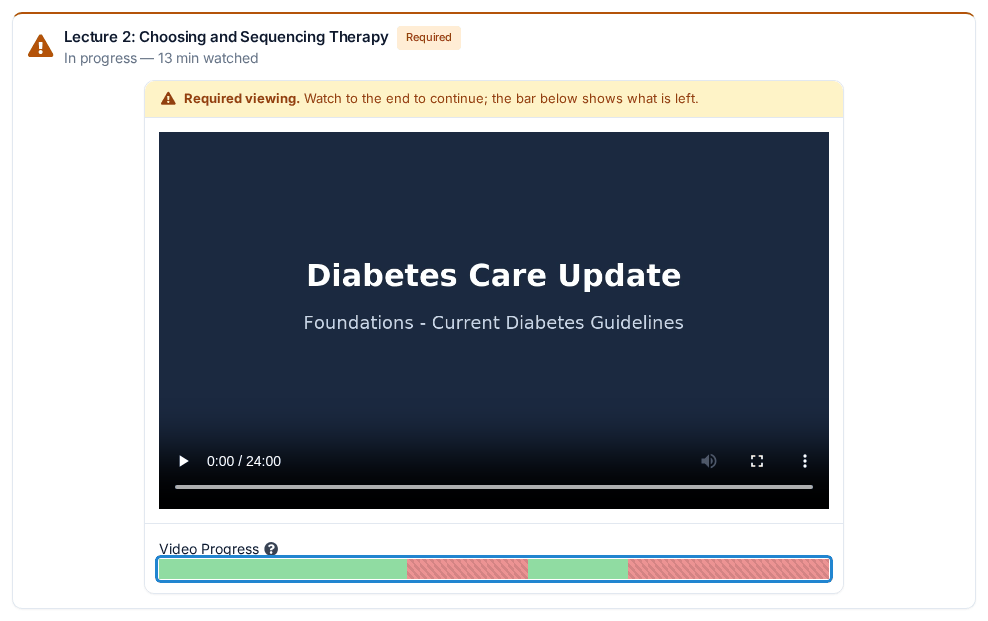
The bar above belongs to someone who watched the opening stretch, skipped ahead, watched a bit more, and stopped. The two red bands are exactly what they still need to play.
This is what makes your completion record hold up for continuing education — it's evidence you actually watched the content, not just that you opened the page. So it's strict on purpose:
- Skipping ahead doesn't fill the bar. Clicking further along jumps you there, which is handy for review, but the part you skipped stays red until it plays.
- The video has to be playing on the course page. If you follow a link out to YouTube or Vimeo and watch there, none of that time counts. Come back and play it on the course page.
- The video has to be in view. Time doesn't credit while it plays in a background tab.
Your progress saves automatically, so you can stop and come back to the same spot.
"I watched the whole thing and it's still incomplete"
Two causes account for nearly all of these.
A few seconds at the end never played. Closing the tab right as the video finishes, or clicking away in the last moments, can leave a sliver unwatched. It's often too small to see on the bar.
The video played somewhere other than the course page — a separate YouTube or Vimeo tab, or in the background while you did something else.
The fix is the same either way: click the very beginning of the first red section, press play, and let it run to the end without skipping and without switching tabs. Then check the bar again.
Two habits that quietly cost you
Watching in a background tab while you work. The video plays, but the bar barely moves.
Full screen on a phone. This can produce the same result. The tell is that you answered the questions that popped up during the video — those record fine — while the progress bar stayed mostly red.
Locked videos and what the statuses mean
Each video in a course is its own row in the materials list, and its player is always there on the page — you don't click a row to open it. The status sits under the title:
| Status | What it means |
|---|---|
| Ready to watch | An optional video. Watch it if you like; it never blocks you. |
| Incomplete | A required video you haven't begun. |
| In progress with the minutes you've watched | A required video you've begun but not finished. |
| Complete! | Done. |
| Complete [the item before it] to unlock, with a padlock | Something before it has to be finished first. |
A video you must watch carries an orange Required label beside its title. Until it's done, a line on the player reads "Required viewing. Watch to the end to continue; the bar below shows what is left."
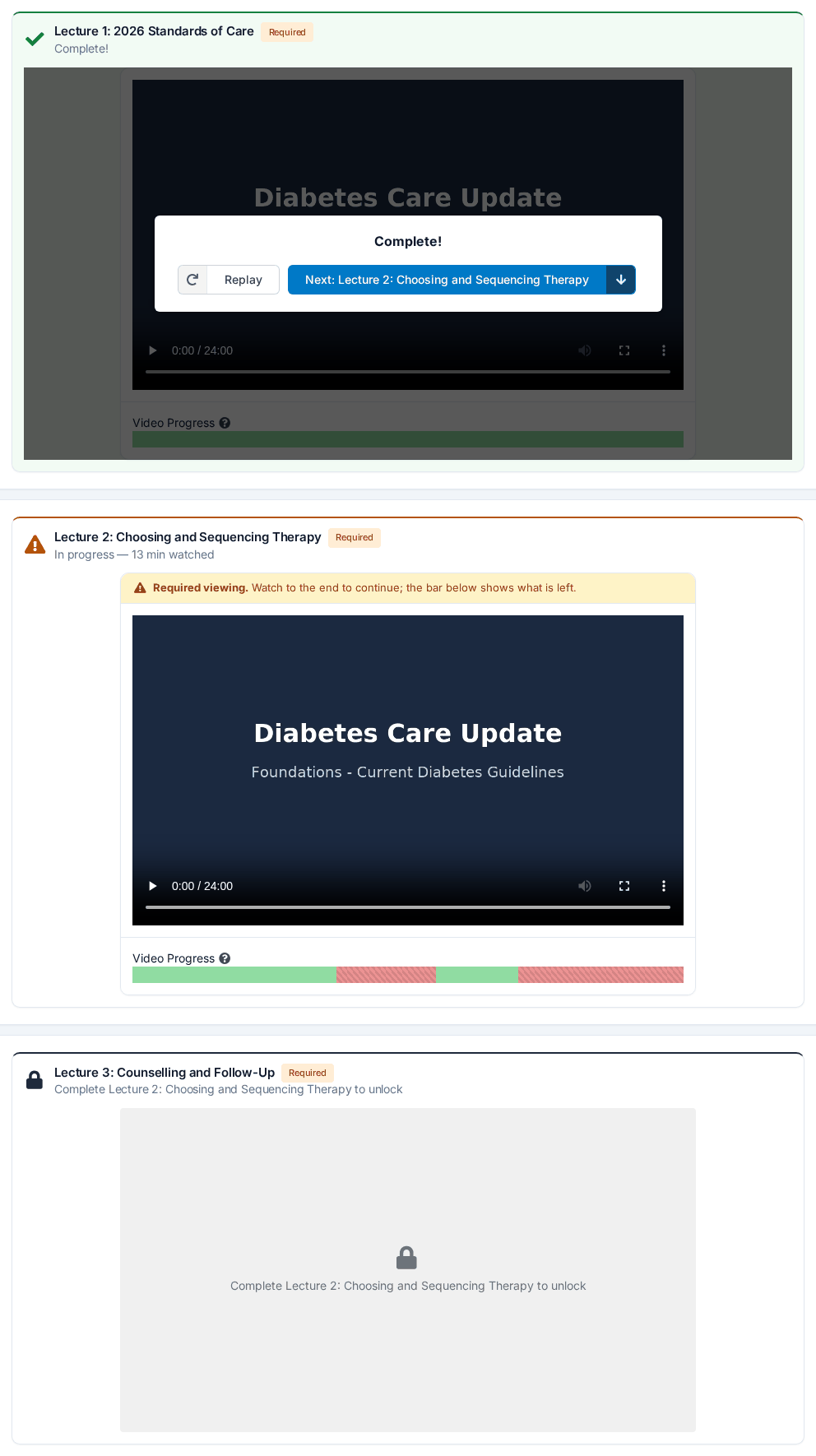
A locked video shows a dimmed box where the player would be. The box names what is holding it up: "Complete … to unlock", with the title of the item to finish. That item is usually the video above, but it can be a learning module. Work down the list — as soon as everything required before it is complete, the player appears by itself. Each video picks up where you left off.
One status that trips people up: a video with no watch requirement always shows Ready to watch, even after you've played it through. It isn't stuck — an optional video simply has nothing it needs from you, and it never blocks the course.
On a course with several parts, the videos in one part only hold up that part. They don't affect the others.
The video looks like a still picture
When one page holds more than five videos, each player shows as a picture until you click it. Click the picture to load the video.
The "Complete!" card over a finished video
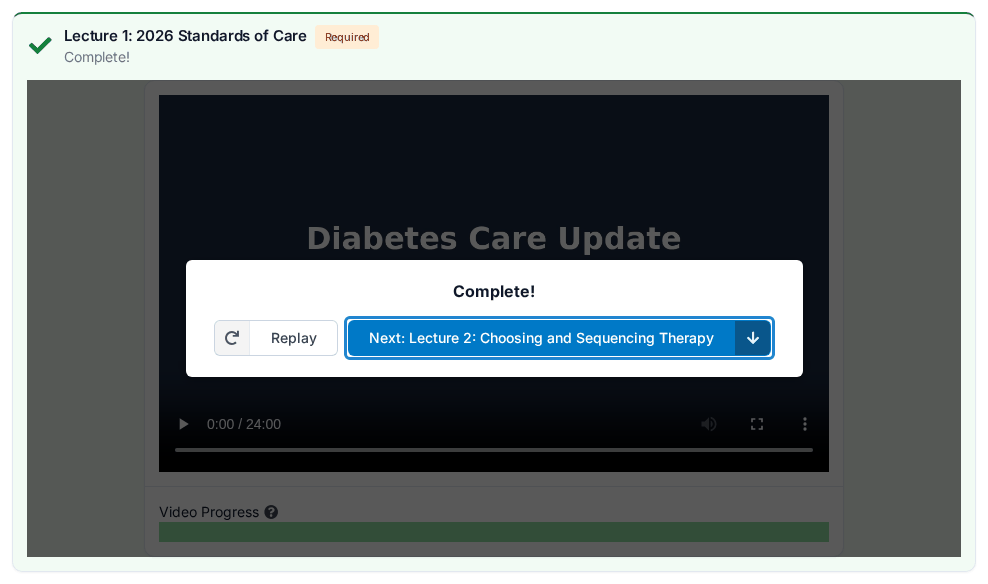
When a required video is complete, a card covers the player. It reads Complete! and has two buttons:
- Replay — watch it again. Your completion is safe; replaying doesn't undo it.
- Next: … — names the next required item and takes you to it. If that item is further up the page, the arrow points up. When nothing required is left, the button reads All required items done — continue and takes you to the button for the next step.
The card is still there when you come back later, so a covered player means "done", not "broken". An optional video shows the same card, with Replay, when it plays to the end.
The video won't play at all
If you get a black screen, no controls, or nothing loads, that's different from a tracking problem — it's usually something about how the video is hosted, which only your course provider can fix. Before you contact them, it's worth ruling out your own setup:
- Try a different browser (Chrome, Edge, Firefox or Safari)
- Try a different network — workplace and hospital networks often block video hosts
- Turn off ad blockers and privacy extensions for this page
If none of that helps, tell your course provider which video, which browser, and what you see. See Getting Help.
A learning module won't mark complete
Some courses include learning modules — interactive lessons, often built in Storyline or a similar tool — rather than plain videos. They sit in a section headed Learning Modules, each with a Launch Module button. (This has nothing to do with the parts of a course; it's just what these lessons are called.)
The status under each one reads Incomplete, In Progress..., Complete!, Failed or Optional. One that reads "Module locked. Complete previous module to access this one." has a Module Locked button and opens once the item before it is done. When you finish one, an Up next: message with a Continue button may offer to take you to the next item.
If a learning module plays through but never shows Complete!, it's usually a setting in how it was published, which is on your course provider's side to correct. If it shows Failed, the lesson reported that you didn't pass it. You can launch it again; if it still reads Failed, tell your provider. Either way, let them know which one it was.
Related
- Working Through a Course — how the steps unlock, and how courses with several parts work
- Quizzes & Evaluations — the other thing that blocks Submit
- Getting Help — what to include when you report this