
Appearance
Admin Access & Permissions
Adding colleagues to your account, and choosing how much of it each of them can reach.
Add an admin user
- Open Organization Settings (the gear icon, top right)
- Go to Permissions
- Click Invite New User
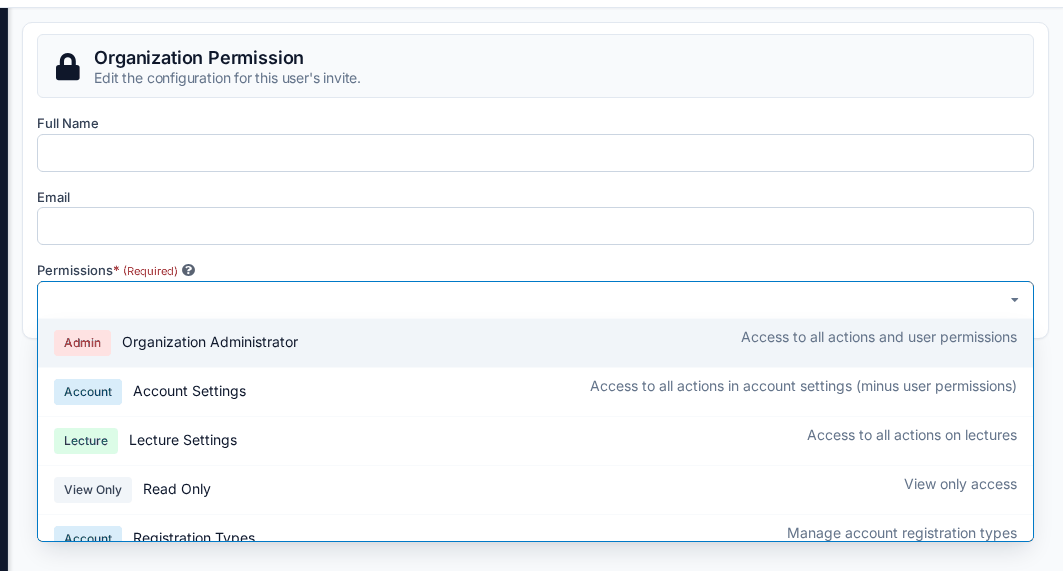
- Enter their name and email address, then choose the permissions they need
They receive an email with a link to set their own password — there's no temporary password to pass along.
There's no user limit and no extra cost
Adding admin users doesn't change your bill or your contract, and there's no cap on how many you can have. Add and remove people yourself whenever your team changes.
That's what makes coverage straightforward: when someone is away, or a role changes hands, give the person covering their own login rather than passing credentials around. Remove it again when it's no longer needed.
One account per person
Each admin account belongs to one named individual and isn't shared between people. Alongside being an account requirement, it's what makes every action on your account attributable — useful when an auditor asks who changed a credit or issued a certificate.
Permission levels
The list starts with four broad levels, each tagged with the area it covers:
| Level | What it covers |
|---|---|
| Organization Administrator | Everything, including managing other users' permissions |
| Account Settings | Everything under Organization Settings, except user permissions |
| Lecture Settings | Everything to do with courses |
| Read Only | View access, with nothing editable |
Below those, the same list continues with narrower permissions you can combine instead — Accreditations, Certificates, Custom Fields, Orders, Payment Processors, Registration Types, Webinar Settings, and Member Checking on the account side; Lecture Details, Lecture Payment Rules, Lecture Learning Materials, Lecture Speakers, Lecture Credits, Lecture Quizzes, and Lecture Publication on the course side.
The field takes more than one, so you can assemble exactly the access someone needs — a colleague who only builds quizzes and manages credits gets those two and nothing else.
When you're unsure, start from the tasks the person will handle and pick the narrowest set that covers them. Permissions are as easy to change as to set, so starting narrow costs nothing — widen it the first time someone hits a wall.
Giving an outside reviewer access
Accreditors, auditors, and CME partners usually need to see courses and completion records without changing anything. Read Only is built for exactly that — grant it, and remove the account when the review is done.
Looking for what learners can see?
This page is about your team's access to the admin side. To look up a learner and what they've registered for, see Finding a Learner.