
Appearance
Emails LecturePanda Sends
LecturePanda sends a fair amount of mail on your behalf without being asked. Knowing what goes out, when, and to whom answers most "why did my learner get this?" questions — and stops you building a nudge the platform already sends.
"Module" for you, "part" for learners
You build a course from modules. Learners never see that word: their course page and their emails call each module a part ("Part of…", "Start this part"). This page uses "part" whenever it quotes what a learner reads. See Course Modules.
What goes out, and when
| Who gets it | When | |
|---|---|---|
| Registration confirmation | Every registrant | Immediately on registration. |
| Tomorrow (day-before notice) | Registrants of a course with a live module | About a day before each live module starts. One per live module. |
| Starting soon | Registrants of a course with a live module | About an hour before each live module starts. One per live module. |
| Completion reminders | Registrants who haven't finished | Weekly, for up to 60 days. Stops the moment they complete. |
| Now open | Registrants of a course with a module that opens on a later date | Once, on the day that module opens. |
| Set up your password | Learners who asked for an account while registering | Immediately, alongside the confirmation. |
| Access code / receipt code | The person you send a code to | When you email a code from the course's code list. |
| Long-term follow-up | Learners who completed | At 3, 6 and 12 months, if you've built follow-up quizzes for those phases. |
| Catalog announcements | Catalog subscribers | On the schedule you set — see Publishing & Sharing. |
| Badge notification | Learners earning a Credly badge | On issue. See Credly. |
| Speaker invitations and task reminders | Speakers you've added | When you invite them or assign material. See Speakers. |
| Invoices and low-bank notices | Your organization's admins | See How Billing Works. |
Everything learner-facing comes from noreply@lecturepanda.com. That's the address to have people whitelist, and the one to search for when someone says nothing arrived — see Learners Not Receiving Emails.
Replies can reach you
If your organization has a Public Contact Email (Organization Settings › Participant Experience), the confirmation, the day-before and starting-soon emails, and the two code emails carry it as their reply-to address. A learner who hits Reply writes to you, not to a dead mailbox. Completion reminders don't carry it.
One button: the course button
Every learner email has one main button, and it always opens that learner's own course page. The join link, the materials, the interactive questions and the credit steps are all on that page, so there is one place to send people.
The wording on the button is yours to set, per registration type:
- Go to Organization Settings › Registration Types and edit a type.
- In the Emails section, fill in Course Button Label.
Leave it blank and the button reads Go To Your Course. Registration types that existed before this setting was added keep the old wording, Complete Credit Requirements, until you change it. The label is used on the confirmation, the starting-soon emails and the reminders.
This is worth a minute if you run courses with no credit attached — "Complete Credit Requirements" reads oddly to a volunteer at an orientation.

The only email with a second button is starting soon, which adds Join The Webinar when the learner has a join link (see below).
Registration confirmation
Sent the moment someone registers, and again whenever you or they resend it. It carries:
- The course button.
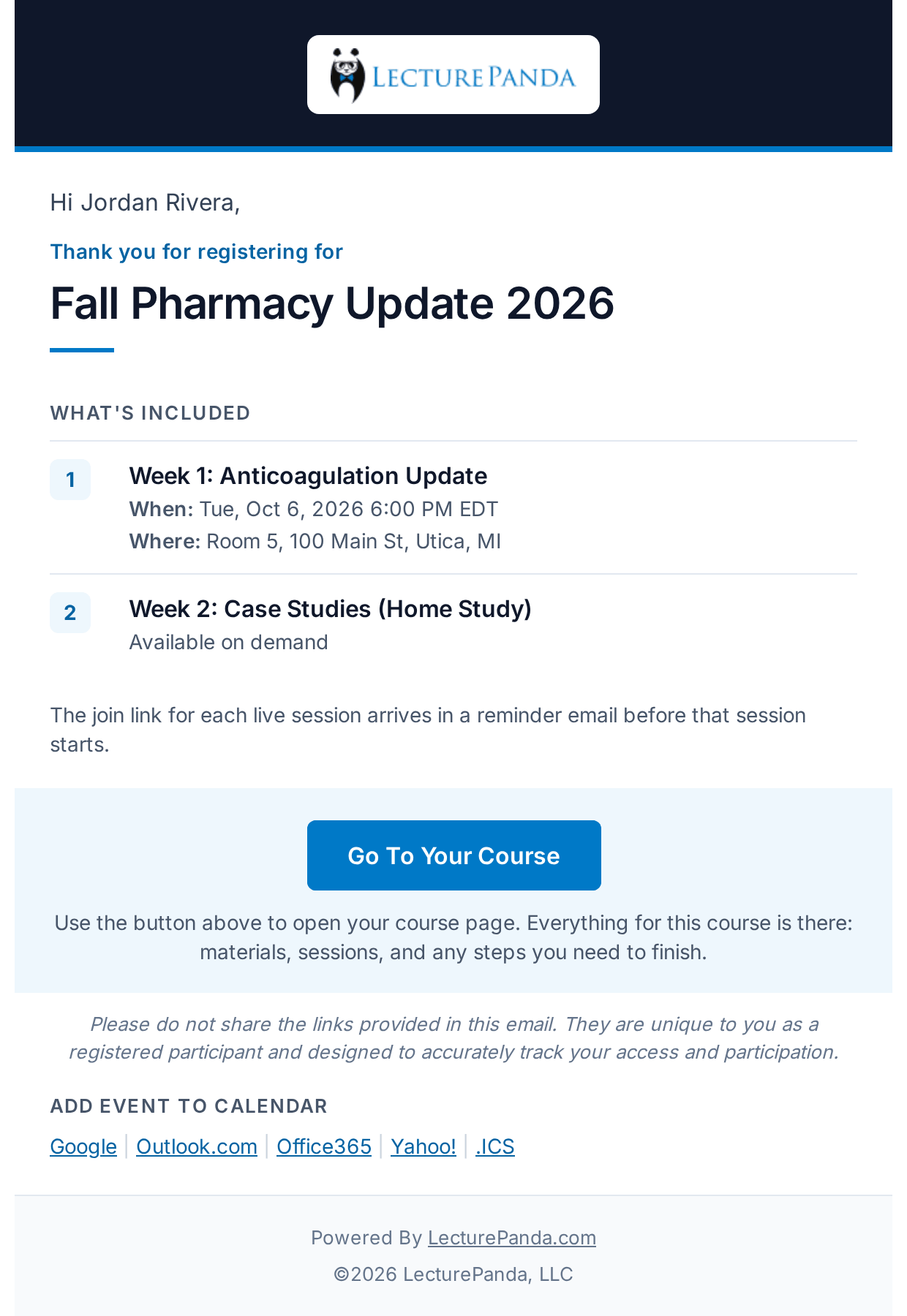
- When and where. For a course with one module, the event's date, place and conference line. For a course with several, a What's included list of every part, each live part with its own date and place.
- Calendar links for the event.
- The check-in barcode, when any module on the course takes attendance.
- The payment receipt, if your organization has Include Payment Receipt in Confirmation Emails switched on — see Registration Payments.
- An Account Created! notice, if the learner asked for an account while registering.
The confirmation never contains the webinar join link
This is by design, on every course. When a session is joined online the confirmation says so: "The join link for each live session arrives in a reminder email before that session starts." The link comes in the starting soon email, and it is always on the learner's course page. Resending the confirmation will not deliver a join link.
Day-before and starting-soon emails
These two go out for each live module, not once per course. A three-session course sends three pairs. A home-study course that has one live module in it sends one pair for that module. Modules set to Home never send them.
| Tomorrow | Starting soon | |
|---|---|---|
| Subject | Tomorrow: {part} ({course}) | Starting Soon: {part} ({course}) |
| When | About a day before the module's Starts time | About an hour before it |
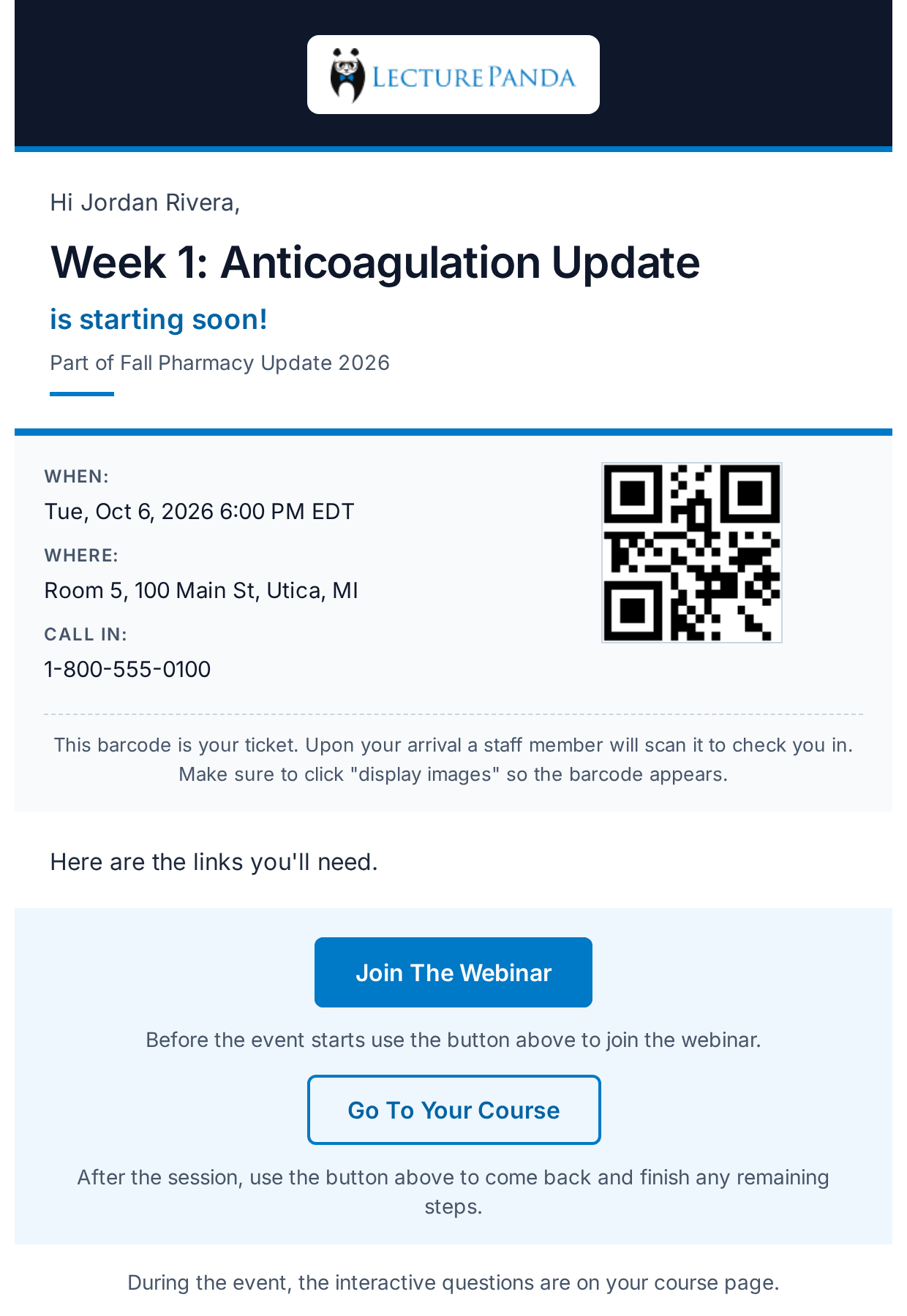
| Join link | No | Join The Webinar, when the learner has a link |
| Check-in barcode | When that module takes attendance | When that module takes attendance |
Both name the part first and say "Part of {course}" underneath. The course button in them opens the course page at that part. It never starts the part for the learner — only their own click on Start This Part does that.
Who is skipped: learners who have already completed that part, inactive registrations, inactive courses, and any part that is locked or closed at the time of sending.
If you reschedule a module, the emails go out again for the new time. A module created or moved to within the next hour is still caught — the check runs every 15 minutes.
When the join button appears
The starting-soon email shows Join The Webinar only when there is a link to give that learner:
- A webinar connected through an integration (Zoom or GoToMeeting) gives each learner a personal join link, and that link is created when the learner starts the part. On a course with one module that happens at registration, so everyone has a link. On a course with several modules, a learner who hasn't pressed Start This Part yet has no link, so their email has no join button. It says instead: "Your join link for this session is on your course page." They open the course page, press Start This Part, and the join button is there.
- A Webinar Link typed into the module by hand is the same for everyone, so it always shows.
- No webinar on the module (an in-person session) — no join button, correctly.
So a missing join button now has three usual causes: the learner hasn't started that part, the module has no Webinar Link and no connected webinar, or the webinar service isn't connected at all — see Webinar Integrations.
Interactive questions
There is no longer an email button for live polling. When a module has interactive questions, the starting-soon email says "During the event, the interactive questions are on your course page." Learners press Interactive Questions on their course page during the session. If someone asks where the polling link went, that is the answer.
Completion reminders
The reminders are the ones you'll field questions about, so they're worth understanding precisely. Subject line: REMINDER: {course}.
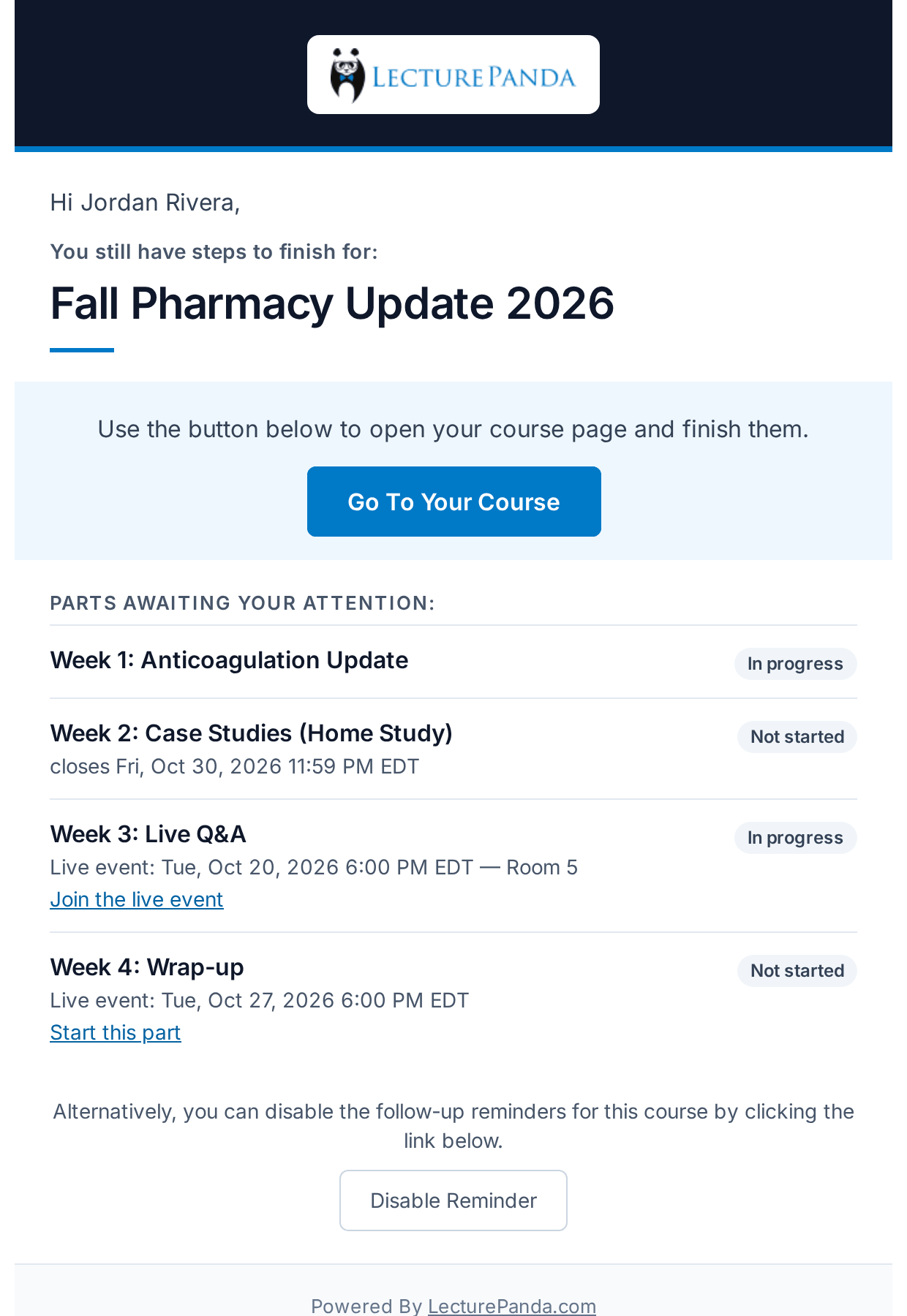
- Weekly for up to 60 days, roughly eight emails per person at most. The first arrives a week after the clock starts.
- Only unfinished learners get them. Completing the course stops them; so does the learner pressing Disable Reminder at the foot of the email, or using their mail app's own unsubscribe link.
Courses with one module
- The clock starts when a live event ends, or at registration for a home-study course.
- Each reminder lists the learner's outstanding steps, marked complete or incomplete.
Courses with several modules
Each module keeps its own clock, but the learner still gets one email a week, not one per module:
- A live module's clock starts when that module's own event ends. Week one of an eight-week series starts nudging after week one, not after week eight.
- A home-study module's clock starts at registration, or on its Module Opens On date if that is later.
- A module's clock stops when the learner completes it, when it closes (Module Closes On), or after 60 days.
- The weekly email follows the earliest clock still running, and lists the parts under Parts awaiting your attention: — each with its status, its live event time, its closing date, and a Start this part or Join the live event link. The four-step checklist is not shown on these courses.
- Modules are optional, so a part the learner never started doesn't set off reminders by itself. The exception is a learner who has started nothing: they get the weekly email worded "You haven't started yet:" until they start one part.
"Now open" emails
When a module with a Module Opens On date opens, registrants get one email — subject Now open: {part} ({course}) — saying "{part} is now open." Its button opens the course page at that part. This is an announcement, not a nag, and it goes out once.
This replaces the "it's week 3, here's your next module" email people used to build in Zapier.
Send people back via their reminder email, not the registration link
Every email's course button is that learner's own link, which drops them exactly where they left off.
If you send your own nudge from your organization, point people at the button in an email they already have. Sending them to the course's public registration URL starts a new registration — a second profile, a second participant from your bank, and progress split across two records.
A learner who says they "keep getting emails about a survey they can't find" is seeing this working correctly: the survey is a step inside their course view, not something on a separate page, and the reminder is telling them that step is still open. The fix is to finish the course, at which point the reminders stop by themselves.
Turning reminders off for one course
Some courses shouldn't nudge anyone — a live webinar, for instance, where no-shows have no way to complete after the event and would otherwise be chased for two months.
- Course builder: Registration › Experience, in the Participant experience card, switch off Weekly reminder emails until they finish. See Experience.
- Classic pages: tick Disable Follow-Up Reminder Emails on the course's Details tab.
Either way the automatic reminders stop for that course only. Day-before and starting-soon emails are not affected — there is no setting to turn those off.
Password setup email
A learner who ticks Create an account so I can log in later to access my certificates and learning history on the registration form gets a second email, Set Up Your LecturePanda Account Password, with a Set Up My Password button. The link is good for 24 hours, and they must set a password before they can log in. They don't need the account to take the course — the course button in their confirmation works without it.
Access code and receipt code emails
When you email someone a code from the course's code list, the email names the course, so a person juggling several registrations knows which is which:
- Your registration code for {course} — an access code for a code-only course.
- Your receipt code for {course} — a receipt code.
See Codes & Free Registration.
Resending a learner's access email
Three routes back in, in order of least effort for you:
- The learner does it themselves from the course registration page, which re-sends their access email.
- You resend it from the Registrants list — the paper-plane button on the person's row. It re-sends the registration confirmation from noreply@lecturepanda.com. See Managing Registrations.
- You email it yourself using the @ button, which opens your own mail client with the learner's link already in the message. Useful when the learner's mail provider is blocking automated mail but accepts a person-to-person message.
All three deliver the learner's course link. None of them delivers a webinar join link — that is on the course page the link opens.
There's no bulk resend
You can't re-send confirmations to a whole registrant list in one action. For pre-event nudges, the automated schedule above is designed to do this job without anyone remembering to press a button.
If the @ button opens a blank page
It hands the message to whatever your computer has registered as its mail application. If nothing is registered — common on a machine using webmail in a browser — you'll get a blank window instead of a draft. Set your browser as the default mail handler, or use the ordinary resend instead.
Proving what was sent
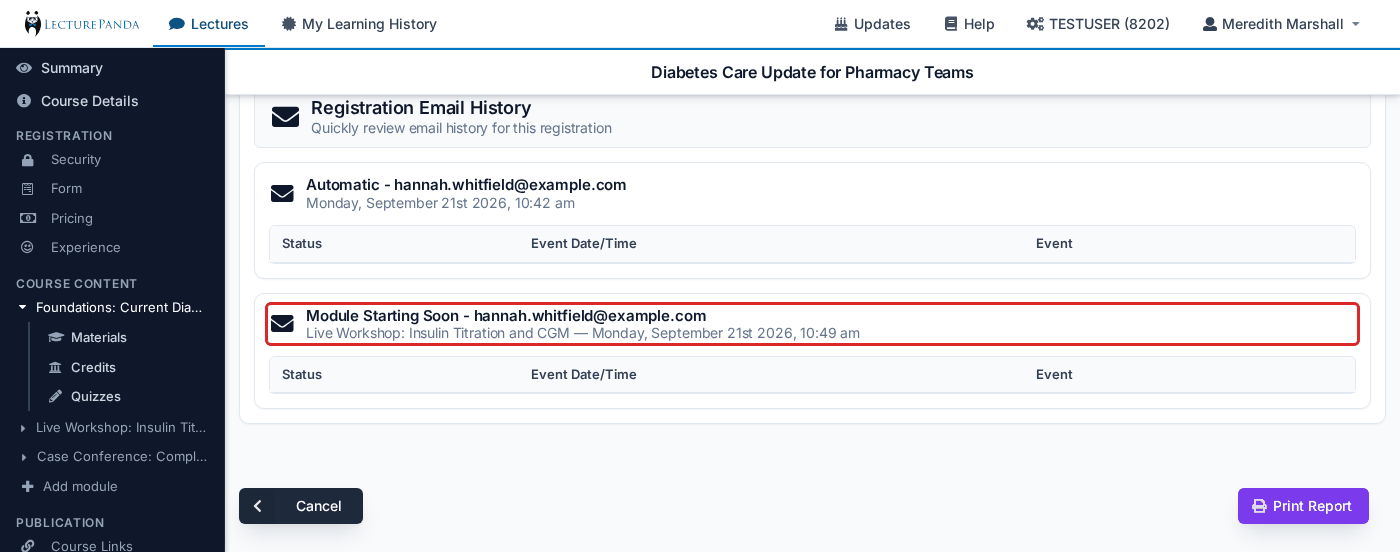
Every registration keeps a full email history, reached from the mail button on the person's row in the Registrants list. Each message is headed by what triggered it and the address it went to. An email about one module shows that module's name under the heading, so you can tell week two's starting-soon email from week three's.
The headings you'll see for automatic mail include Module Tomorrow, Module Starting Soon and Follow Up (the weekly reminder and the "now open" email).
For each message the history records the delivery events reported back by the mail system:
- Sent and delivered
- Opened, and any links clicked
- Bounced, with the reason — a hard bounce usually means the address is wrong
- Marked as spam
- Link Unsubscribe or List Unsubscribe — the learner turned this course's reminders off, either with Disable Reminder or with their mail app's unsubscribe link. This is a choice, not a delivery fault.
This settles the "I never got anything" conversation quickly, and it distinguishes the two cases that need completely different responses: mail that never arrived (a delivery problem — see Learners Not Receiving Emails) and mail that was delivered and opened but not acted on.
It's also what to check when a learner discovers months later that a credit never registered: the history typically shows weeks of reminders, delivered and opened.
What you can change
Most of the automatic mail is fixed, but these are yours:
- The Course Button Label, per registration type — above.
- Each module's name, dates, place, conference line and webinar populate the confirmation, day-before and starting-soon emails. In the course builder they're on the module's own page — see Course Modules. On the classic pages the Details tab edits them for the course's first module.
- Your Public Contact Email decides where a learner's reply goes.
- The course description appears in catalog announcement emails and on the announcement page — the place to put parking instructions, a dress code, or what to bring. In the course builder it's under the title on the Course Details page; on the classic pages it's Additional Info on the Details tab. It is not included in confirmations or completion reminders.
- Anything genuinely custom is a job for Zapier, which can fire your own email on registration or completion — a welcome message, next steps, related courses.
Related
- Learners Not Receiving Emails — spam filters, DMARC, corporate mail systems, and "there was no join link"
- Managing Registrations — the Registrants list these controls live on
- Running a Live Event — what attendees receive, in order
- Publishing & Sharing — catalog announcement emails
- Zapier — sending your own mail on LecturePanda events