
Appearance
Publishing & Sharing Your Courses
A finished course isn't visible to anyone until you hand out a link to it. LecturePanda gives you three ways to do that — a link to one course, a QR code, or a catalog listing many — and a catalog can email your list about what's coming up.
Which link do I send?
| You want to | Use | In the course builder | On the classic pages |
|---|---|---|---|
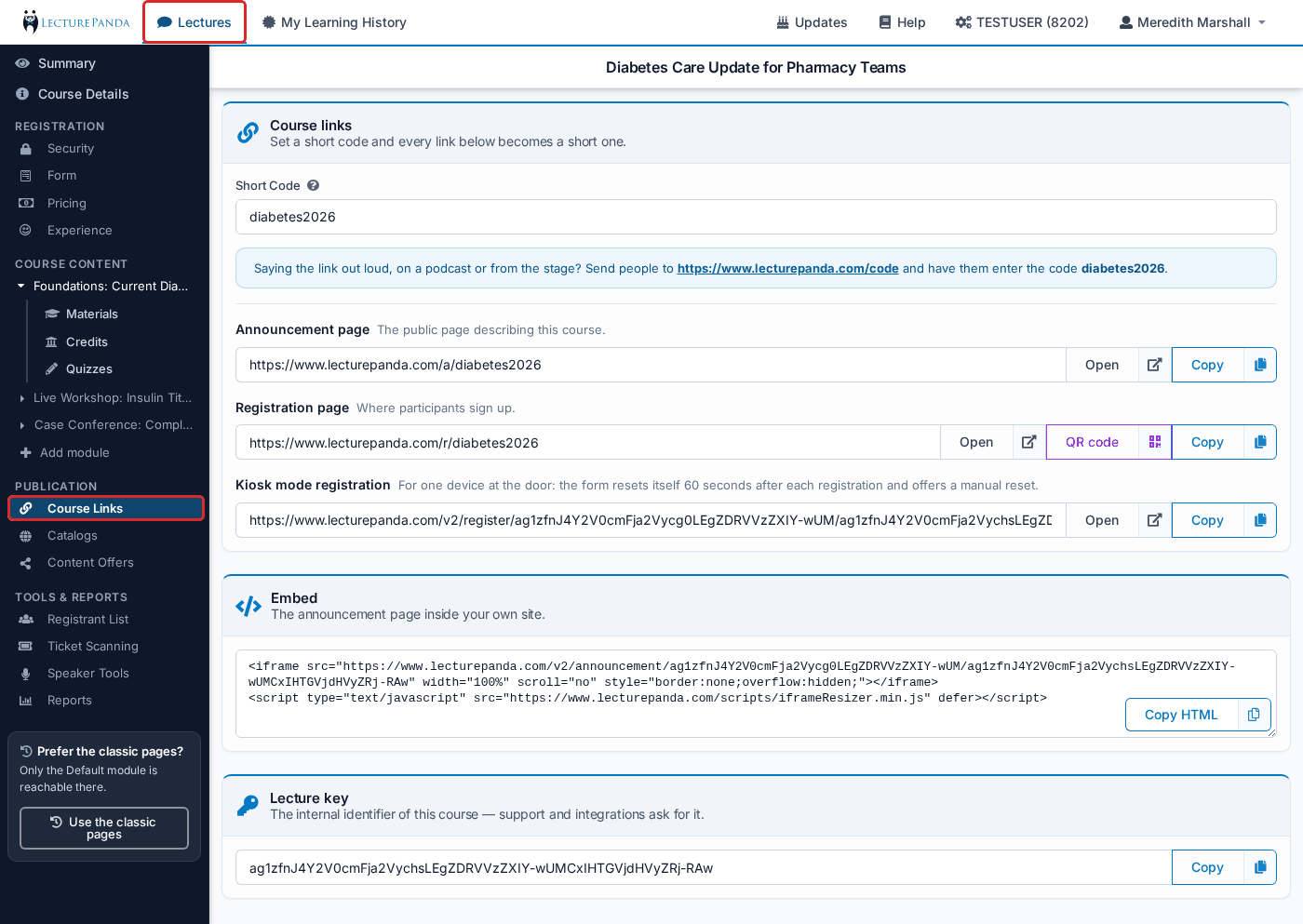
| Send someone to one course | Announcement page URL | Publication › Course Links → Announcement page row | Lecture Tools → Information Tools |
| Put a course on printed material | Registration QR code | Publication › Course Links → QR code on the Registration page row | Lecture Tools → Registration Tools |
| Say a link out loud or print it short | Lecture short code | Publication › Course Links → the short code at the top of the card | Lecture Tools → Lecture Short Code |
| Show everything you offer | Catalog link or embed code | Publication › Catalogs → share icon | Publication tab → share icon |
| Put a single course on your website | Embed Announcement Page | Publication › Course Links → Embed card → Copy HTML | Lecture Tools → Information Tools |
Neither the course link nor the catalog link lives under your company settings, which is where most people look first. Both are on the course: in the course builder under the Publication group of the course menu (Publication), on the classic pages on the Lecture Tools and Publication tabs.
Always share the full link
Include the https:// prefix. Links shared without it fail in Safari for some users — see Registration & Access.
Catalogs
A catalog — also called a publication or series — is a single page listing every course you've published into it. It's your course portal: one URL that stays current as you add courses, rather than a list you maintain by hand.
Create one from any course's catalogs page — Publication › Catalogs in the course builder, the Publication tab on the classic pages — using + Add Catalog, then publish courses into it. Every course has its own catalogs page showing all your catalogs with a Published / Unpublished toggle for each, so one course can appear in several catalogs at once.
Most organizations end up with a few catalogs aimed at different audiences — an all-courses one, a members-only one, a conference one — rather than a single list of everything.
Sharing a catalog
The share icon on a catalog row gives you both a direct link and an embed code. The direct link is what goes in newsletters, email signatures and social posts; the embed code drops the catalog into a page on your own site. Both update themselves as courses are published in and out, so you set them once.
Catalogs aren't public until you share them
Nothing surfaces a catalog to learners automatically. It exists at its URL and appears where you embed it — that's it.
Removing a course from a catalog
Open the course, go to Publication › Catalogs (the Publication tab on the classic pages), and switch that catalog to Unpublished. Registrations, completions and certificates are untouched — only catalog visibility changes, so learners already enrolled carry on as normal.
The common case is a live event that's finished: unpublish the live course and publish the on-demand version in its place.
Expired courses unpublish themselves. With Auto-Unpublish Expired Courses enabled — it's on by default in Course Configuration — a course drops out of every catalog once all of its credits have expired. See Publication for exactly when that runs.
Emailing your list about upcoming courses
Catalogs can email people. This is the feature customers most often assume doesn't exist: they publish a catalog, hear nothing, and conclude something is broken.
Two separate things have to be in place:
1. A list of subscribers on the catalog. The mail icon on the catalog row opens its subscriber list, where you can add addresses one at a time, upload them from a spreadsheet, search the list, and export it. Alternatively, set Offer Email Opt-In To on the catalog and the registration types you choose get a checkbox at registration to add themselves.
2. A schedule. The catalog's Reminders field takes a list of day offsets — enter 1, 5, 20 and subscribers are emailed 20 days, 5 days, and 1 day before each course in that catalog starts. Leave it empty and nothing is sent, no matter how many subscribers the list holds.
You can also send immediately: the mail button on a course's catalogs page sends the announcement now, and tells you when the next scheduled one is due so you don't double up.
What the announcement email says. It carries the course's title, dates and description, and the announcement flyer if you've uploaded one (course builder: Registration › Experience; classic pages: the Publication tab). For a course built from several modules it also lists each one under Parts — its name, when, where, and its Webinar Link and Conference Line when the module has them — and the attached calendar file has one entry per live module. If you'd rather a session's link only reached registrants, connect the webinar through an integration instead of typing a Webinar Link into the module: personal join links are never in this email.
Two different lists, constantly confused
A catalog subscriber list mails people about upcoming courses. A membership checking list validates people at registration to decide who qualifies for member pricing — it never emails anyone.
Uploading your members to membership checking and expecting catalog emails is the single most common version of "the catalog isn't emailing my list."
Syncing to a marketing platform instead
A catalog's Marketing Tool Sync pushes registrant information from its courses into Mailchimp or Constant Contact. That's a different job from catalog reminders — see Marketing Tools.
Finding courses later
Once you've run a few dozen courses, the Lectures list needs filtering rather than scrolling. Build a filter — by date, by title, by expiry, by registration count — and use Save As New View to keep it. Named views then appear in the Select Saved View dropdown.
Views worth having: courses still open for registration, courses whose credits expire this quarter, and everything from a given conference.
Related
- Publication in the course builder — Course Links, Catalogs and Content Offers
- Publication reference — every field on the catalog form
- Lecture Tools reference — every link and QR code a course generates, on the classic pages
- Managing Registrations — what happens after someone follows the link
- Marketing Tools — Mailchimp and Constant Contact