
Appearance
Certificate Issues
The certificate shows the wrong date, prints placeholder text instead of the learner's name, or won't open. Each has a distinct cause and fix.
Building a template rather than fixing one?
The certificate shows the wrong date
Two different causes, depending on what's wrong:
The date is wrong for everyone
The certificate pulls its date from the date set on the credit in the course's Credits tab. If that date was entered incorrectly, every certificate reflects it. Correct the date in the Credits tab and the certificates update to match.
Everyone shows the same date instead of their own completion date
The certificate template is using a Lecture Start Date placeholder, which renders the course's start date — the same value for every learner, no matter when they finished. For a completion certificate you almost always want the Credit Issue Date placeholder instead, which renders the date each individual learner earned the credit.
To fix:
- Open the certificate template in the editor (Organization Settings → Certificate Templates)
- Find the date placeholder using Lecture Start Date (
start_dt) - Replace it with Credit Issue Date (
credit_issue_date) from the Data Placeholder menu in the editor toolbar - Save
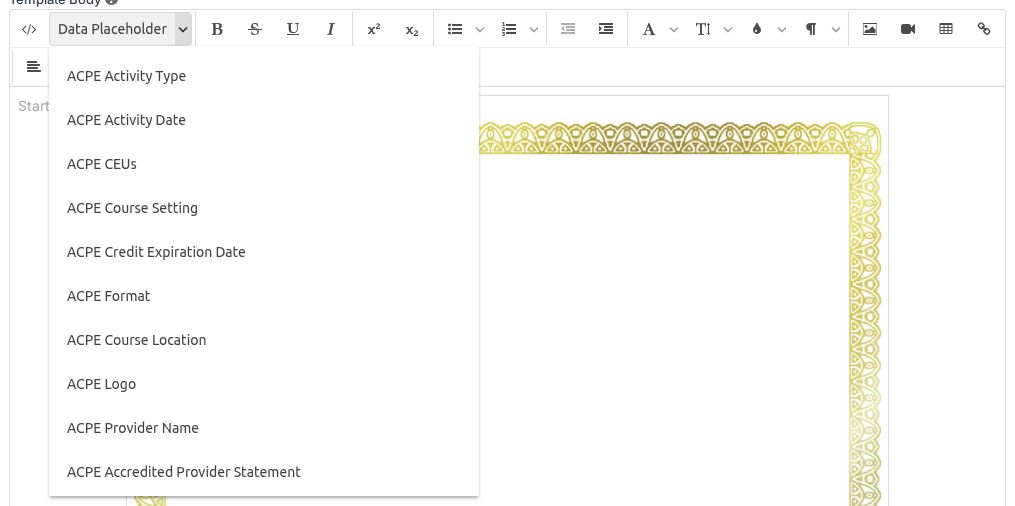
Certificates are re-rendered when accessed, so the change corrects the displayed date for past completions too. If a learner still sees a stale date, have them refresh and re-download.
The certificate prints literal placeholder text
If a generated certificate shows the literal text of a placeholder (e.g. "participant name") instead of the learner's actual name, there is almost always hidden formatting markup inside the placeholder brackets. This usually comes from copy-pasting the placeholder from Word, Google Docs, or another rich-text source — the paste brings invisible HTML along with it, which breaks the substitution. The template preview often looks fine, which makes this confusing.
To fix: edit the certificate template, delete the broken placeholder entirely, and re-insert it fresh from the editor's Data Placeholder menu (don't paste it). Then generate a test certificate to confirm the name substitutes correctly.
The certificate link is missing for participants
A certificate is offered only when a certificate template is assigned to the credit. If learners are completing the course but see no certificate, that assignment is usually missing:
- Open the course and go to Credits
- Edit the credit the certificate belongs to
- Select a template in the certificate template dropdown
- Save
Once a template is attached, anyone who completes the requirements is offered their certificate on the completion step automatically. Templates themselves are created in Organization Settings → Certificate Templates.
Where learners get their certificate
Certificates are generated the moment a learner completes their requirements and appear as download links on their completion step — one per earned credit, available immediately without waiting for an email.
That page stays available to them, so a learner who wants their certificate again simply returns to it:
- Through their own Learning History, if they have a LecturePanda account — the certificate for each credit sits on the course's page there. This is the most reliable route: going back in through the course can ask them to redo an evaluation that was replaced after they finished, and Learning History skips that.
- They can request their access email from the course registration page, follow the link back in, and download from the completion step.
- Or you can send it to them from the Registrants list — see Managing Registrations.
To hand a learner self-serve instructions rather than walking them through it, send them Getting Your Certificate.
Add your own completion email
The Zapier completion trigger sends a custom email the moment someone finishes — a thank-you, next steps, or links to related courses, with their certificate a click away on the completion page.
The certificate won't open
If the link is present but clicking it produces an error like "We can't open this file. Something went wrong" — across different browsers and devices — that's a platform-side issue rather than something in your configuration. Contact support with the course link and an affected learner's email; after it's resolved, learners may need to refresh or clear their cache.