
Appearance
Using the Help Center
How this site is organized, and the fastest way to get from a question to an answer.
Start with search
The search box at the top of every page covers every article here, and it's usually quicker than navigating. It matches on headings and body text, so searching the words you'd actually use — an error message, a button label, "receipt code", "won't play" — generally lands you on the right section rather than just the right page.
Worth knowing: error text works well as a search term. Pasting Invalid e-Profile ID or Duplicate Record Submitted goes straight to the article that explains it.
How the site is organized
Four links across the top divide everything: Guides, Reference, For Learners and Updates. The sidebar changes to match whichever you're in.
Guides answer "how do I accomplish X?", and they're ordered the way a course's life actually runs:
| Group | What's in it |
|---|---|
| Set Up Your Account | Getting started, admin access, how billing works |
| Build a Course | Structure, moving content in, quizzes, certificates, non-CE courses |
| Price & Get Paid | Pricing rules, payments and receipts, discount and free-access codes |
| Run Your Courses | Publishing, live events, registrations, emails, the learner's view, reports |
Below those sit three more groups that only some organizations need: Connecting Other Systems for a CRM, payment processor or webinar tool; Accreditation & Reporting if you report completions to ACPE, CE Broker or ACCME PARS; and Troubleshooting, organized by what a learner reports rather than by what's actually wrong.
Reference answers "what does this field do?" — every setting on a course and across your account, plus the Developers pages for the OAuth API and for authoring xAPI modules.
For Learners is the odd one out: it isn't written for you at all. Those pages address the person taking your course — how to get back into it, where their certificate is, how to pull a receipt — and they route readers back to you rather than to LecturePanda support. Link them from your course descriptions and confirmation emails. Share These With Your Learners has the page list and some wording you can lift.
Updates lists what's changed and when.
Guides and Reference answer different questions
A guide is task-shaped and opinionated — it tells you which of several approaches to take and why. A reference page is field-by-field and complete — it tells you what every setting does without recommending one. When you're planning, start in Guides; when you're staring at a screen full of options, go to Reference.
Reference follows the app's own menus
The Reference groups mirror the menus you work in, so a setting's help article sits in the same order as the setting itself.
A course has two versions of its pages, and you choose which you use: the new course builder, or the classic pages. You switch yourself, per person, at the bottom of any course's menu — Try the new version one way, Use the classic pages the other. Reference has a group for each.
Course Builder covers the new version, one page per area of its menu: Summary, Course Details, the Registration group (Security, Form, Pricing, Experience), Course Content (the course's modules), Publication, and Tools & Reports. Start with The Course Builder, which also has a table of where every classic setting went.
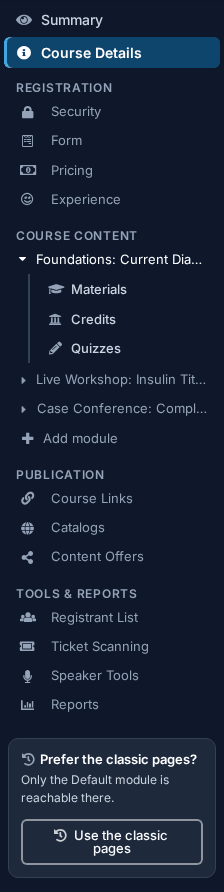
Classic Pages covers the original tabs, matching the classic menu down the left of any course:
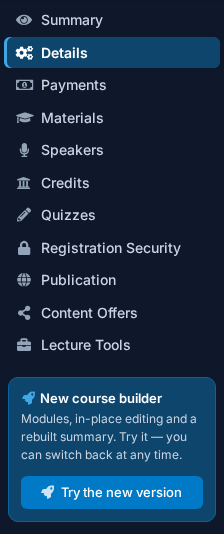
Changes made in either affect only that course, and your courses are the same behind both versions.
Organization Settings covers everything that applies account-wide, matching the menu under the gear icon:
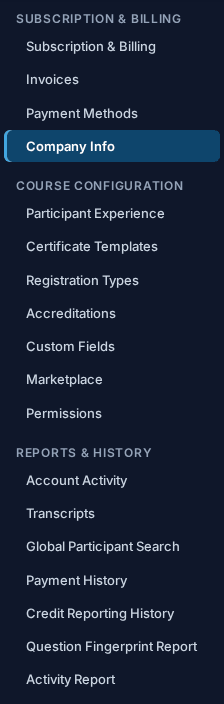
Changes made here affect every course in your account.
If you can't find it
- Common Learner Issues is a single list of what learners most often email about, each entry linking to the fix.
- Contact Support covers what to send us so the first reply is a useful one.