
Appearance
Publication
Publications are a compilation of lecture offerings. When viewing publications, Admins can see all publications that exist in their account regardless of which lecture they are currently viewing. Admins must then decide to set this lecture to Unpublished or Published for each existing publication. If the lecture is set to Published, it will be among the lectures listed when viewing that specific Publication. Once a Publication is created, it can be previewed and embedded into your company website.
This page describes the classic pages
In the new course builder this tab is Publication › Catalogs — see Publication. Catalogs work the same way there, with Add Catalog in the corner of the Catalogs section. Two things move: the Announcement Flyer is on Registration › Experience, and the Catalogs page has a Topics section for the course's topics instead.
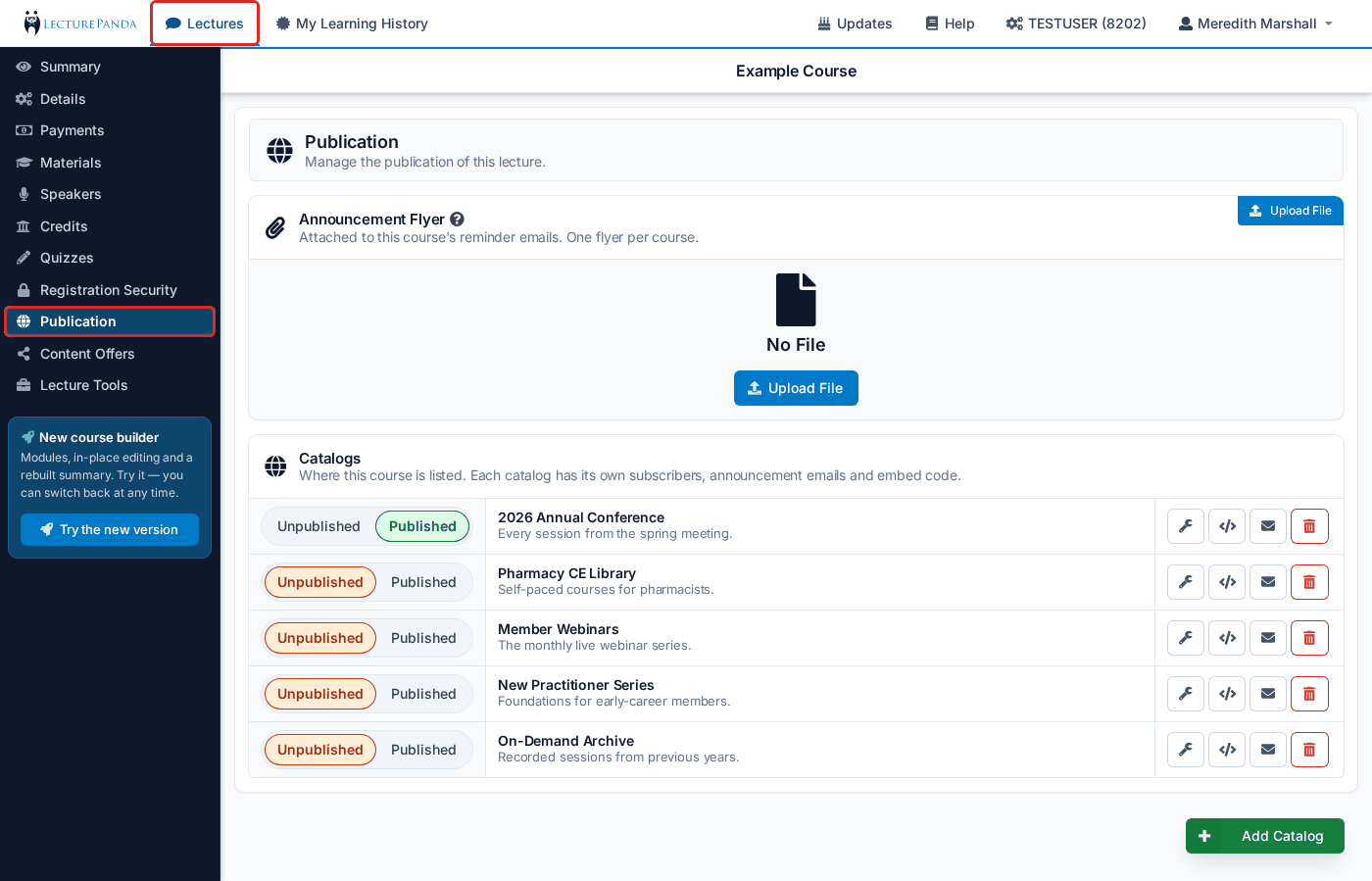
Announcement Flyer
On the classic pages, the Announcement Flyer block sits at the top of the Publication tab. Upload a file there and it is attached to the announcement emails your catalogs send about this course, and offered for download on the course's announcement page; it is not sent to registrants. There is one flyer per course — uploading a second one overwrites the first.
Add a Catalog
Use the green "+ Add Catalog" button to create a new catalog/publication.
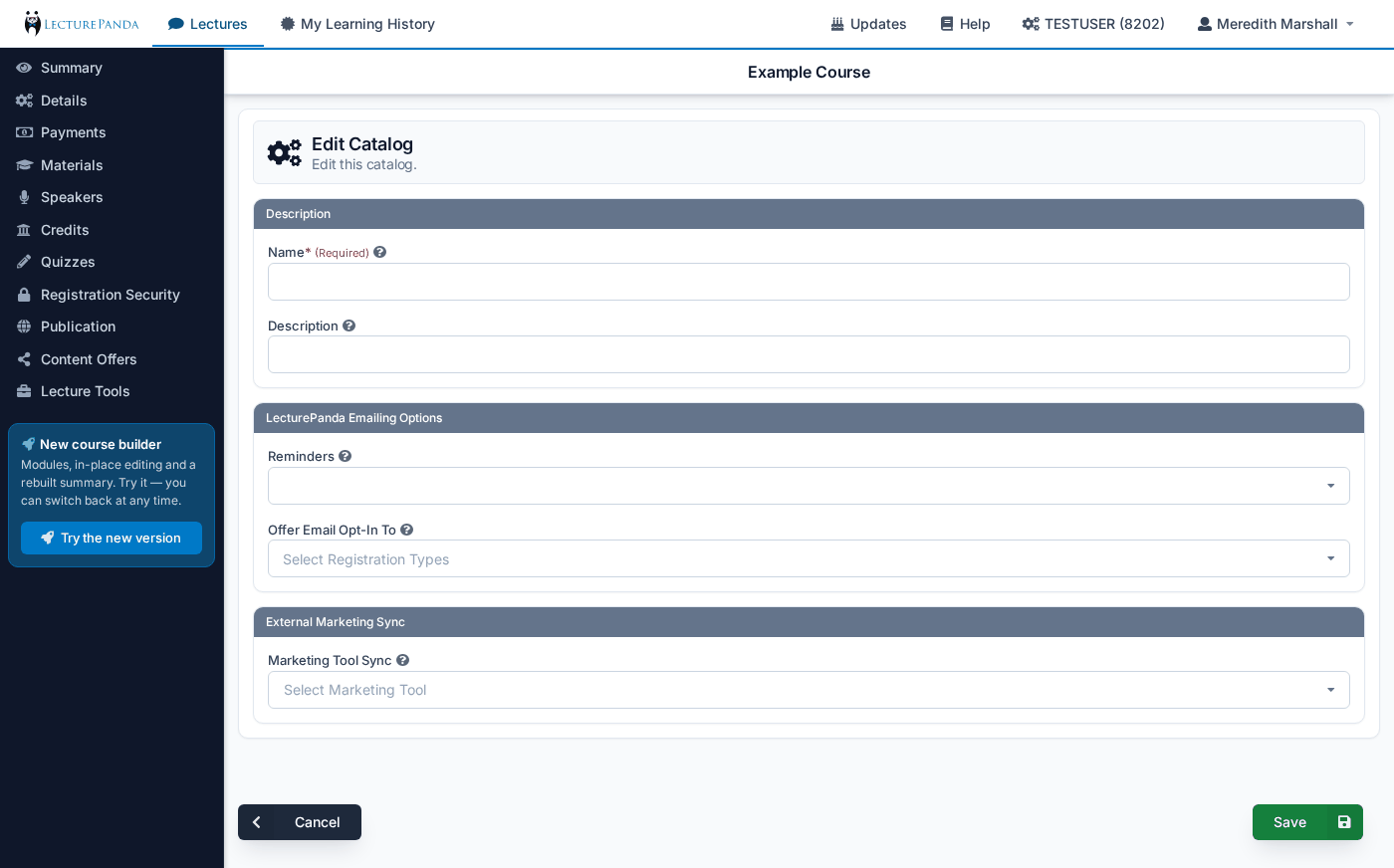
Name
The name of this catalog/publication.
Description
Optional. Add a description for this publication. This description will be publicly visible.
Reminders
Determine the number and frequency of announcement emails. Admins may enter any number(s) here to define when subscribers should receive an email. For example, entering 5 and 1 emails subscribers 5 days before a lecture starts and again the day before.
INFO
Anyone subscribed to a Publication will be emailed every time an upcoming lecture meets the reminder requirements.
Leave this blank and nothing is sent
Subscribers alone don't trigger email — the schedule is what sends it. See Publishing & Sharing.
Offer Email Opt-In To
During registration, the selected registration types will be offered a checkbox to add themselves to this publication's distribution list.
Marketing Tool Sync
Optional. For lectures published to this catalog, participant information is synced into the selected marketing tool account, and Sync To List picks the distribution list it lands in. See Marketing Tools.
Managing a Catalog
Each catalog row carries its own controls:
- Edit — reopen the form above.
- Share / Embed — a direct link to the catalog and the HTML to embed it in your own site. Both stay current as courses are published in and out.
- Manage Emails — the catalog's subscriber list. Add addresses individually, upload them from a spreadsheet, search, export, or remove them.
- Delete — removes the catalog. Contact support if one is deleted by mistake.
Publishing a Course
Every course has its own Publication tab (Publication › Catalogs in the course builder) listing all your catalogs, each with a Published / Unpublished toggle — so a single course can appear in as many catalogs as you like.
Unpublishing only affects catalog visibility. Existing registrations, completions and certificates are unaffected, and learners already enrolled keep their access.
The mail button alongside sends this course's announcement email to catalog subscribers immediately, and tells you when the next scheduled send is due.
Automatic Course Management
LecturePanda can automatically manage course visibility in your catalogs to keep them current.
When the "Auto-Unpublish Expired Courses" setting is enabled in Course Configuration, courses are automatically removed from all catalogs (Publications/Series) once all their credits have expired. This automated process:
- Runs daily at 12:03 AM
- Only unpublishes courses where ALL active credits with expiration dates have passed
- Does not affect existing registrations - learners can still access courses they've already registered for
- Properly updates course counts on catalog pages
INFO
This setting is enabled by default. If you prefer to manually manage which courses appear in your catalogs, you can disable this feature in your Organization Settings.
When the "Auto-Unpublish Courses When Registration Closes" setting is enabled (it is off by default), the same daily job also removes a course from all catalogs once its Close Registration On date has passed. Courses without registration time limits are not affected, and learners who already registered keep their access.