
Appearance
Publication
The Publication group: the links you hand out, the catalogs the course is listed in, and — on Marketplace accounts — its content offers.
This page is for the course builder
It describes the Publication group of the menu, which you see after switching with Try the new version. On the classic pages the catalogs are the Publication tab, content offers are the Content Offers tab, and the links are on Lecture Tools. See The Course Builder for the full map.
Course Links
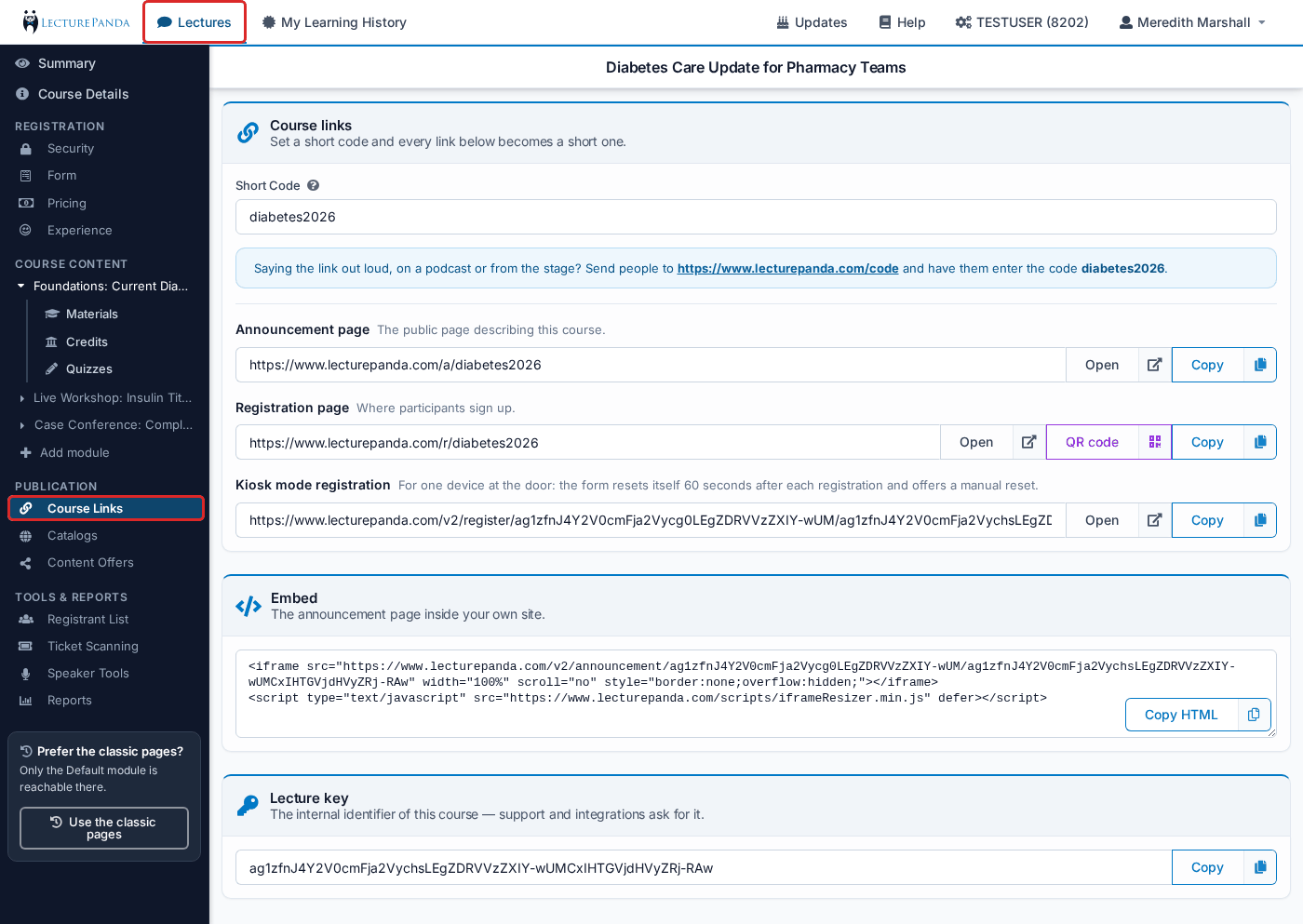
The page has three sections.
Course links
"Set a short code and every link below becomes a short one."
Short Code — type a code and LecturePanda checks whether it is free. Short codes are unique across all of LecturePanda, so a common word may be taken ("Short Code Taken"). When the code is free, click Short Code Available! Click to Save.
Once a code is saved, a tip appears for saying the link out loud — from a stage or on a podcast: send people to the /code page and have them enter the code. Until then the page says "No short code yet, so the links below are the long ones."
Announcement page — "The public page describing this course."
Registration page — "Where participants sign up." The QR code button shows a Registration QR Code to put on a slide, a sign or a flyer.
Kiosk mode registration — for one device at the door: the form resets itself 60 seconds after each registration and offers a manual reset. This link always stays the long one.
Each link has Open and Copy buttons.
Embed
"The announcement page inside your own site." Click Copy HTML and paste the code into your web page.
Lecture key
"The internal identifier of this course — support and integrations ask for it." Click Copy.
Catalogs
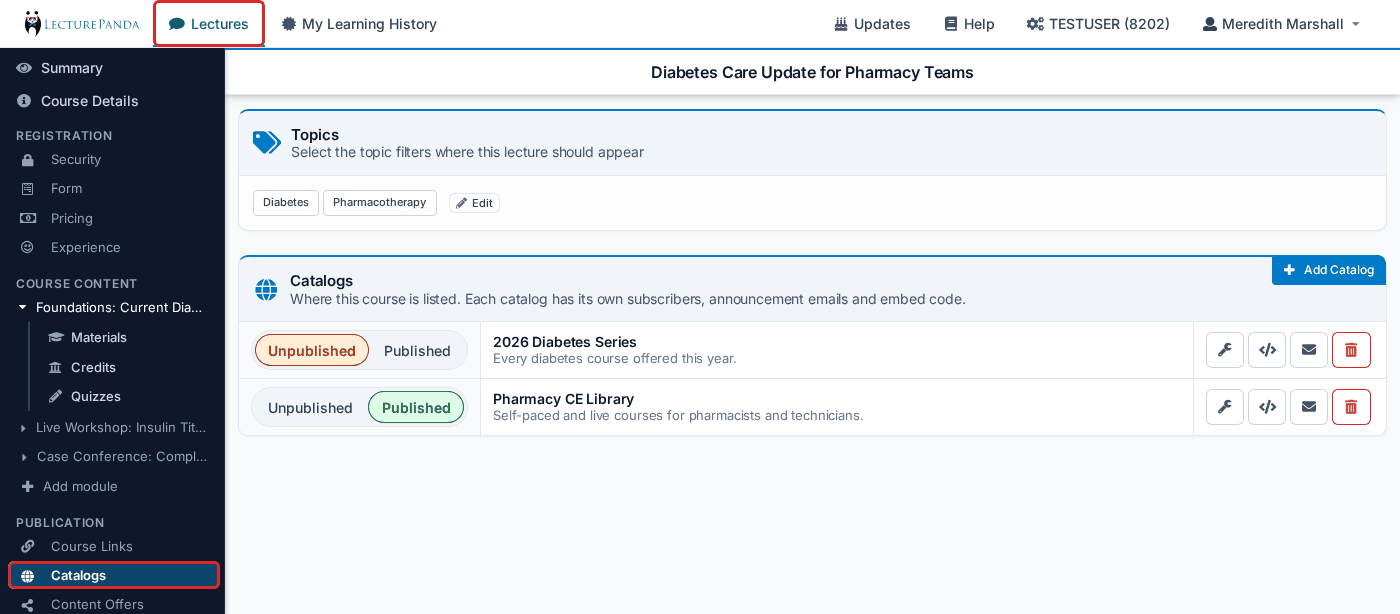
The page has two sections.
Topics
"Select the topic filters where this lecture should appear"
Topics help participants — and the Marketplace — filter courses by the type of content. Click Edit, choose from Select Topics, and Save.
Catalogs
"Where this course is listed. Each catalog has its own subscribers, announcement emails and embed code."
Every catalog in your account is a row, with a Published / Unpublished toggle for this course. A course can be published to as many catalogs as you like. Click Add Catalog in the corner to make a new one.
Everything else about catalogs — the catalog form, the row's buttons (edit, embed code, manage emails, delete), sending the announcement email and automatic unpublishing — works exactly as on the classic pages. See Publication.
Looking for the Announcement Flyer?
In the course builder it is on Registration › Experience.
There is no draft or publish state for a single module. Publishing is the course's: when the course is published, every module in it is live.
Content Offers
Shown only on accounts that use the Marketplace. The page and its form are the same as on the classic pages — see Content Offers.
Related
- Publishing & Sharing — which link to use where, and how catalog emails work
- Summary — the two status chips and the Publication card read from these pages