
Appearance
Form
Registration › Form: the kinds of participant the course is for, and what the registration form asks them.
This page is for the course builder
It describes the Form page in the Registration group, which you see after switching with Try the new version. On the classic pages these are the Select Registration Types and Additional Registration Questions fields of the Details tab. See The Course Builder for the full map.
The page has two sections, in the order a registrant meets them: Audience, then Additional Questions. Both save as you go — there is no Save button.
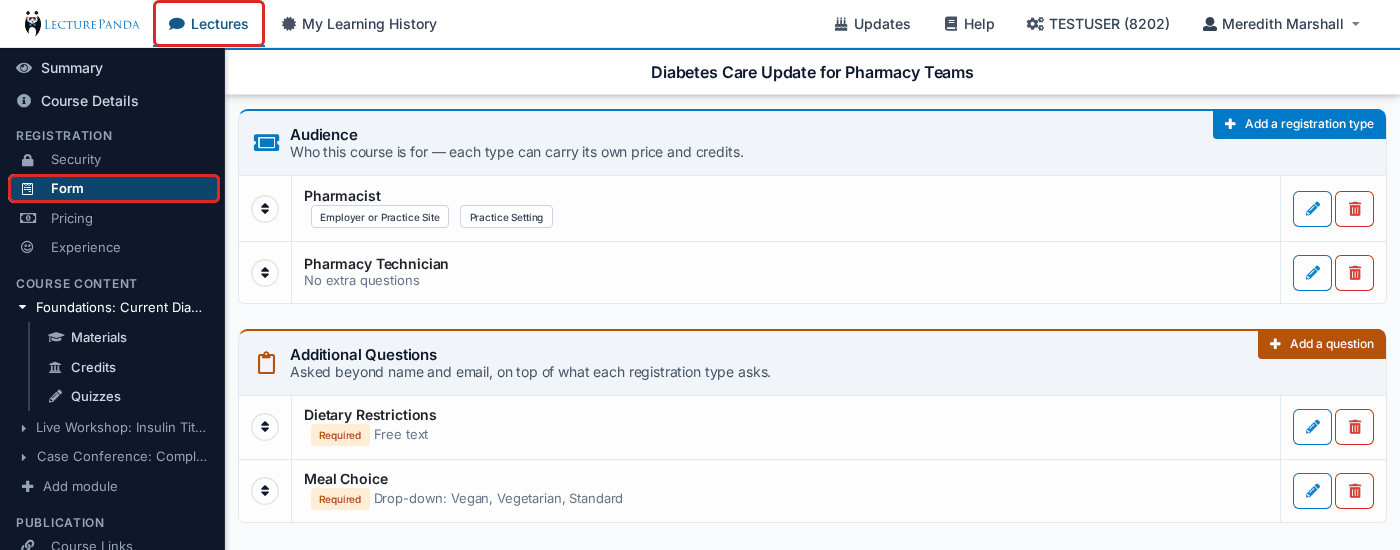
Audience
"Who this course is for — each type can carry its own price and credits."
These are the course's registration types. A registrant picks one at the start of the form ("What best describes you?"), and the type decides which questions they are asked, and can decide their price, their credits and their quizzes.
Each row is one registration type. Under its name are the questions that type brings into the form, one tag each — the ones the type requires are marked required. A type that asks nothing extra reads "No extra questions".
- Adding a type — click Add a registration type in the corner, then choose from Pick a registration type. Create a new type beside the picker opens your account's registration types to make one. When every type is already on the course, the corner control itself reads Create a new type.
- Reordering — drag a row by its handle. This is the order the types are offered to registrants.
- Editing a type — the edit button on the row opens the type in your account's registration types. A type belongs to your account, not to this course, so a change there applies to every course that offers it.
- Removing a type — click Remove and confirm. The type comes off this course only; it stays in your account and on every other course. The last type cannot be removed ("Keep at least one registration type.") — a course needs at least one.
Additional Questions
"Asked beyond name and email, on top of what each registration type asks."
Questions added here are asked of every registrant, whichever registration type they pick, and they are required. With none, the section reads "Registrants are asked only for their name and email, plus what their registration type asks."
Each row is one question, with a line saying what kind it is — "Free text", "Drop-down:" and its choices, or "Address".
- Adding a question — click Add a question in the corner, then choose from Pick a question. The list is your account's additional registration questions.
- Reordering — drag a row by its handle. This is the order they are asked in.
- Editing a question — the edit button on the row opens it in your account's registration fields.
- Removing a question — click Remove on the row.
INFO
Any additional question that uses a drop-down can also be used to decide pricing — see Apply Price Based On Additional Registration Question on Payments.
Need an optional question instead?
Questions added here are required of everyone, with no toggle. To ask something optionally, attach it to a Registration Type instead — there, Additional Registration Fields decides what is asked and Required Fields decides what must be answered, so a question can be offered without being mandatory.
Not on this page
- Who may register at all is Registration › Security.
- Check-in is set on each module — see per-module check-in.
Related
- Course Configuration — creating registration types and additional questions