
Appearance
Pricing
Registration › Pricing: what registrants pay, the extras they can buy, the codes that stand in for a payment, and the fee text on the announcement page.
This page is for the course builder
Pricing is the classic Payments tab under a new name — the same page, in the Registration group of the menu. Everything on it works the same way in both, so the detail lives on one reference page: Payments. This page tells you what is where. See The Course Builder for the full map.
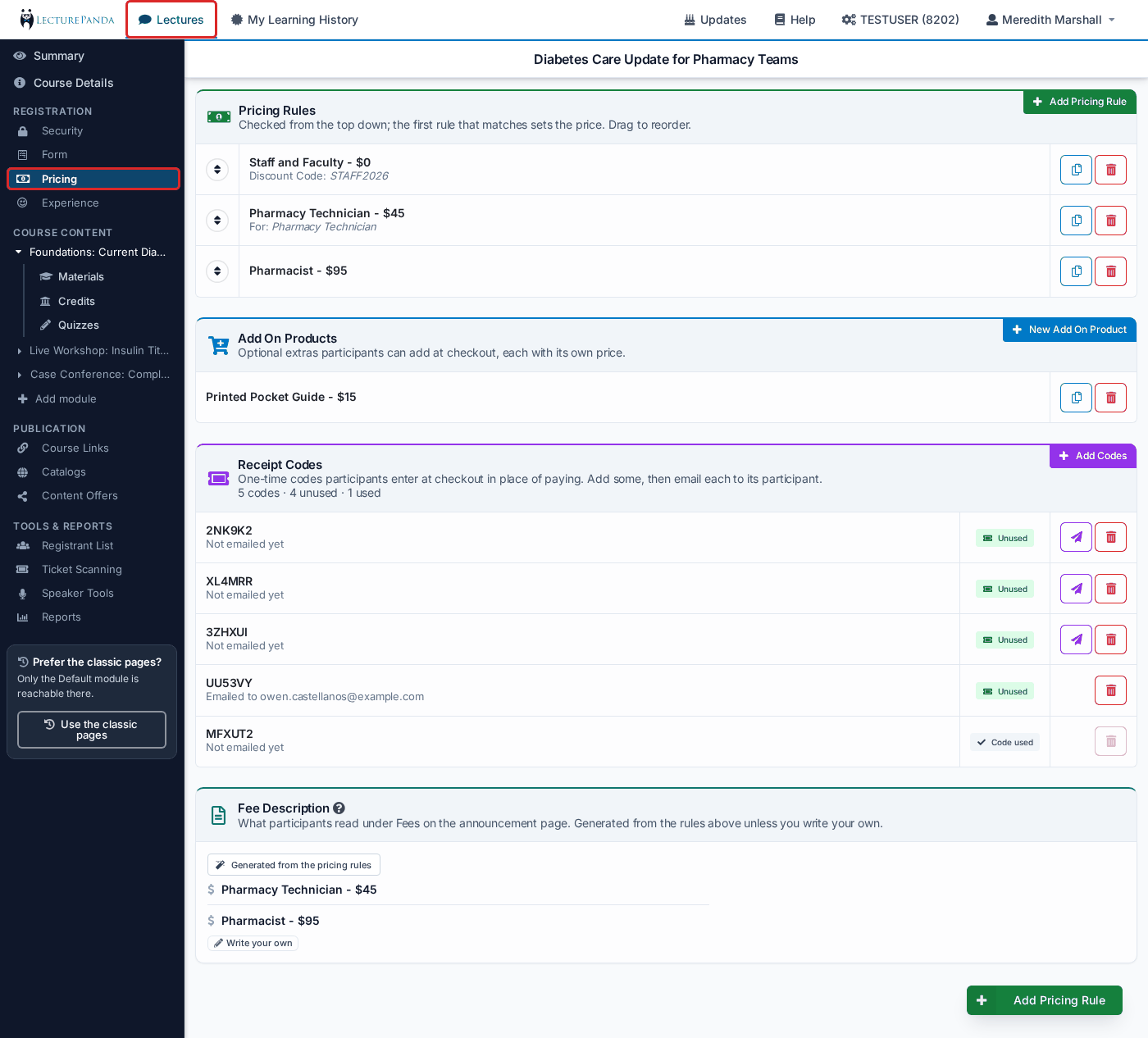
The page has four sections, top to bottom.
Pricing Rules
"Checked from the top down; the first rule that matches sets the price. Drag to reorder."
- Click Add Pricing Rule — in the corner of the section, or the green button floating at the bottom right — to create a rule. The form is described field by field in Creating a Pricing Rule.
- Click a rule's row to edit it. The buttons on the row copy it or delete it.
- Drag a rule by its handle to change the order. Order matters: most specific rules first, the catch-all rule last. See Pricing Rules.
- A rule that can never be reached is greyed out and tagged Never applies — see Unreachable rules.
With no rules the section reads "No pricing rules yet. Participants will not be asked to pay during registration." — the course is free, and the two sections below are greyed out until it has a rule.
The page warns you at the top when the order looks wrong: No Default Price Rule Found! when the last rule still has filters, and Discount Code Rules Are Not At The Top! when a discount code rule sits below a rule that would catch the same registrant first.
Add On Products
"Optional extras participants can add at checkout, each with its own price."
Click New Add On Product in the corner. Available once the course has a pricing rule. See Add On Products.
Receipt Codes
"One-time codes participants enter at checkout in place of paying. Add some, then email each to its participant."
Click Add Codes and choose Add 1 Code, Add 25 Codes or Add 50 Codes. Use the mail button on a code to email it to a participant; the row then reads Emailed to address, and each code is tagged Unused or Code used. A code that has been used cannot be deleted. Receipt codes stand in for a payment, so the section is greyed out until the course has a pricing rule.
See Codes & Free Registration for when to use a receipt code rather than a discount code or an access code.
Fee Description
The last section of the page is the fee text shown on the announcement page.
- With nothing written, it shows the text LecturePanda builds from your rules, labelled Generated from the pricing rules. Click Write your own to replace it.
- Once you have written your own, it is labelled Custom text replaces the generated fees on the announcement page. Edit changes it; Use generated text discards it (after a "Discard your custom text?" confirmation) and goes back to the generated text.
Payment gateways
The payment gateway is chosen on each pricing rule (Select Payment Gateway). Gateways themselves are connected under Organization Settings — see Payment Processors.
Related
- Payments — the field-by-field reference for this page
- Pricing Rules — how the funnel decides a price
- How Billing Works — what each registration costs you, which is separate from what learners pay