
Appearance
Tools & Reports
The Tools & Reports group: the registrant list, ticket scanning at the door, the speaker's live tools, and the course's spreadsheets.
This page is for the course builder
It describes the Tools & Reports group of the menu, which you see after switching with Try the new version. On the classic pages all of this is the single Lecture Tools tab. The registration links, short code, embed code and lecture key that used to sit beside them are now on Publication › Course Links. See The Course Builder for the full map.
Registrant List
Everyone who has registered for the course, with their progress. It is the same page as View Registrations on the classic pages: search, open a registration, resend access, check someone in by hand, remove a registration, and download the list. See Managing Registrations and Finding a Learner.
On a course where modules take check-in, each registrant also has a check-in control for each of those modules, and the download has a column for each.
The Registered tile on the Summary opens this page.
Ticket Scanning
The check-in page: scan the barcode from a participant's email — or look them up — to mark them present. It is the same page as Check-In Page on the classic pages.
Check-in is turned on per module (module settings › Additional settings › Check-in), and every module scans the same way. When any module takes check-in, this page shows a Checking in to picker listing each module that does — the first module included; there is no separate "Course" entry. Pick the session you are standing at the door of; the page remembers your choice for that course. A course with just one such module has it picked already.
Scanning someone into a module can use a participant from your bank
If the participant has not started that module yet, checking them in starts it for them. That counts exactly like the learner clicking Start This Part — so if it is not their first module, it uses one participant from your bank, and if the bank is empty the check-in is refused until you add participants. Un-checking someone does not undo it. See Billing.

Speaker Tools
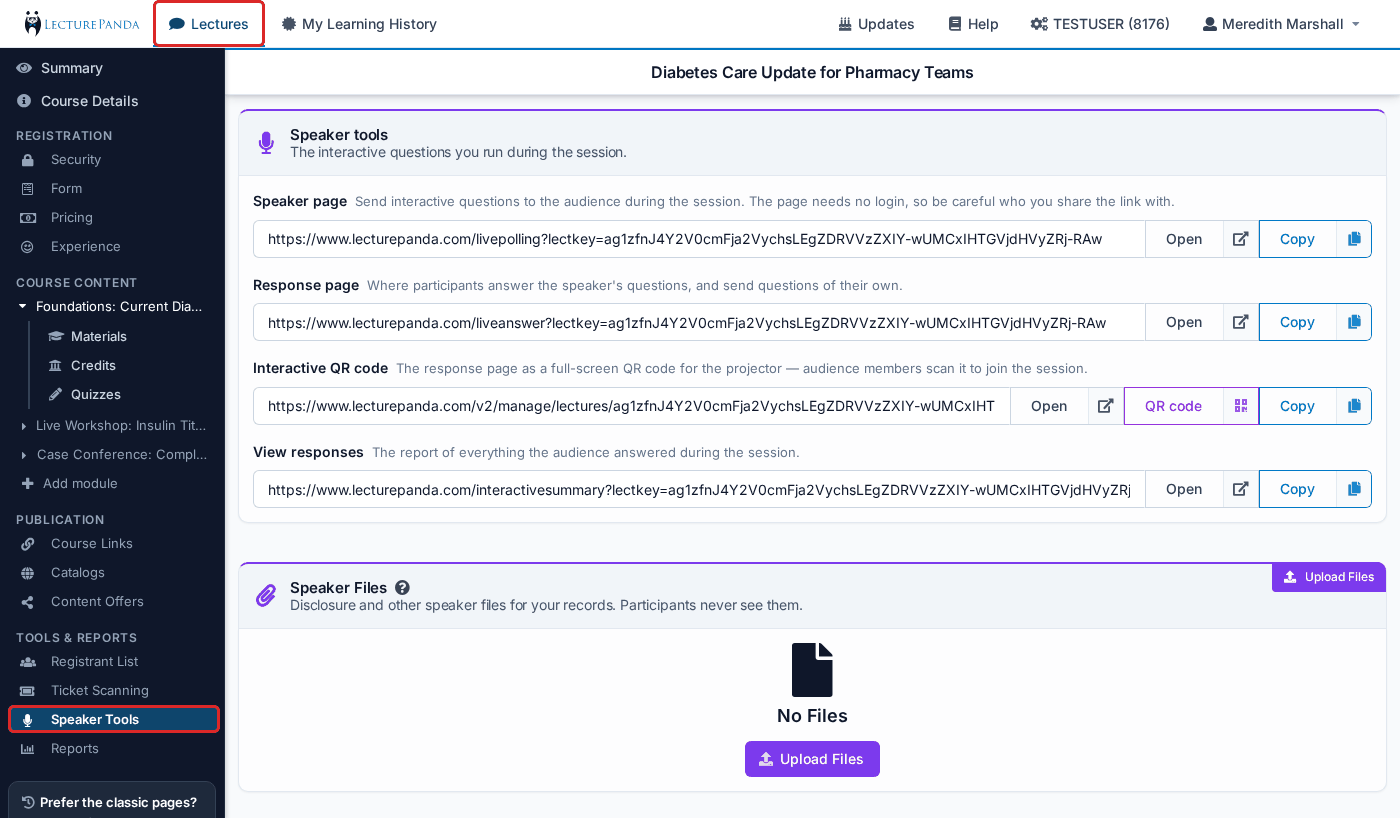
"The interactive questions you run during the session."
Four rows, each with Open and Copy buttons:
- Speaker page — send interactive questions to the audience during the session. The page needs no login, so be careful who you share the link with.
- Response page — where participants answer the speaker's questions, and send questions of their own.
- Interactive QR code — the response page as a full-screen QR code for the projector; audience members scan it to join the session. The QR code button shows the same code in a dialog.
- View responses — the report of everything the audience answered during the session.
Learners reach the response page from the Interactive Questions button on their course page. See Audience Response for how a speaker runs a session.
Speaker Files
Under the tools is a Speaker Files section: disclosure forms and any other speaker paperwork you keep for your records. Click Upload Files in its corner (or the button in the empty section) to add files; each row has a Download button and a delete button. Participants never see these files. The files are the same ones the classic Speakers tab shows.
Reports
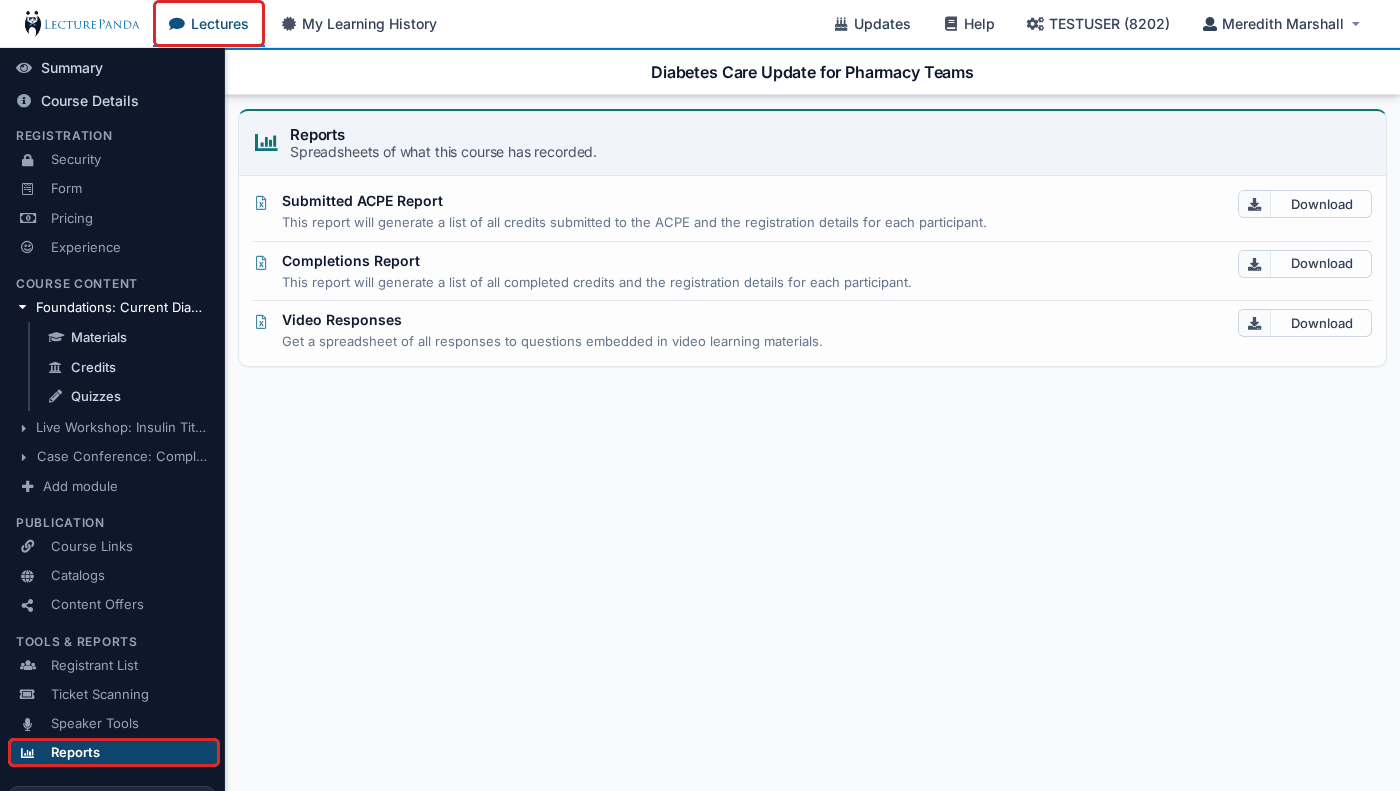
"Spreadsheets of what this course has recorded."
Each report has its own Download button:
- Submitted ACPE Report — every credit submitted to ACPE, with each participant's registration details. For ACPE providers; see Accreditation & Reporting if you report somewhere else.
- Completions Report — every completed credit on this course, with each participant's registration details. This is the per-course answer to "who finished, and what did they earn" — see Choosing the Right Report for when to use it instead of the account-wide reports.
- Video Responses — every response to the questions embedded in the course's videos.
A quiz's own grades and responses are on the quiz's row — Course Content › module › Quizzes.
Related
- Live Events — running a session from start to finish
- Lecture Tools — the classic page