
Appearance
PowerPoint Presentations
Upload a PowerPoint (.pptx) to a module and learners page through its slides right on the course page. LecturePanda records each slide they view, and a required deck must be viewed to the end before they can move on.
This page is for the course builder
PowerPoints are added on a module's Materials page in the course builder. The classic Materials tab does not offer them. See Course Modules for how modules and their materials work.
A PowerPoint is a learning material, like a video or an xAPI package. (For a PDF, see Tracked PDFs.) Learners do not download anything or need PowerPoint installed: the slides are shown in a viewer on the course page, one at a time, in order. Each slide a learner views is saved, so they can stop and come back later. When they have viewed every slide, the PowerPoint is complete.
Adding a PowerPoint
- Open the module under Course Content and click Materials.
- Click Add Material and choose Add PowerPoint. The Add PowerPoint dialog opens.
- Drag your file onto the box that reads "Drag and drop a PowerPoint (.pptx) here", or click the box to browse for it.
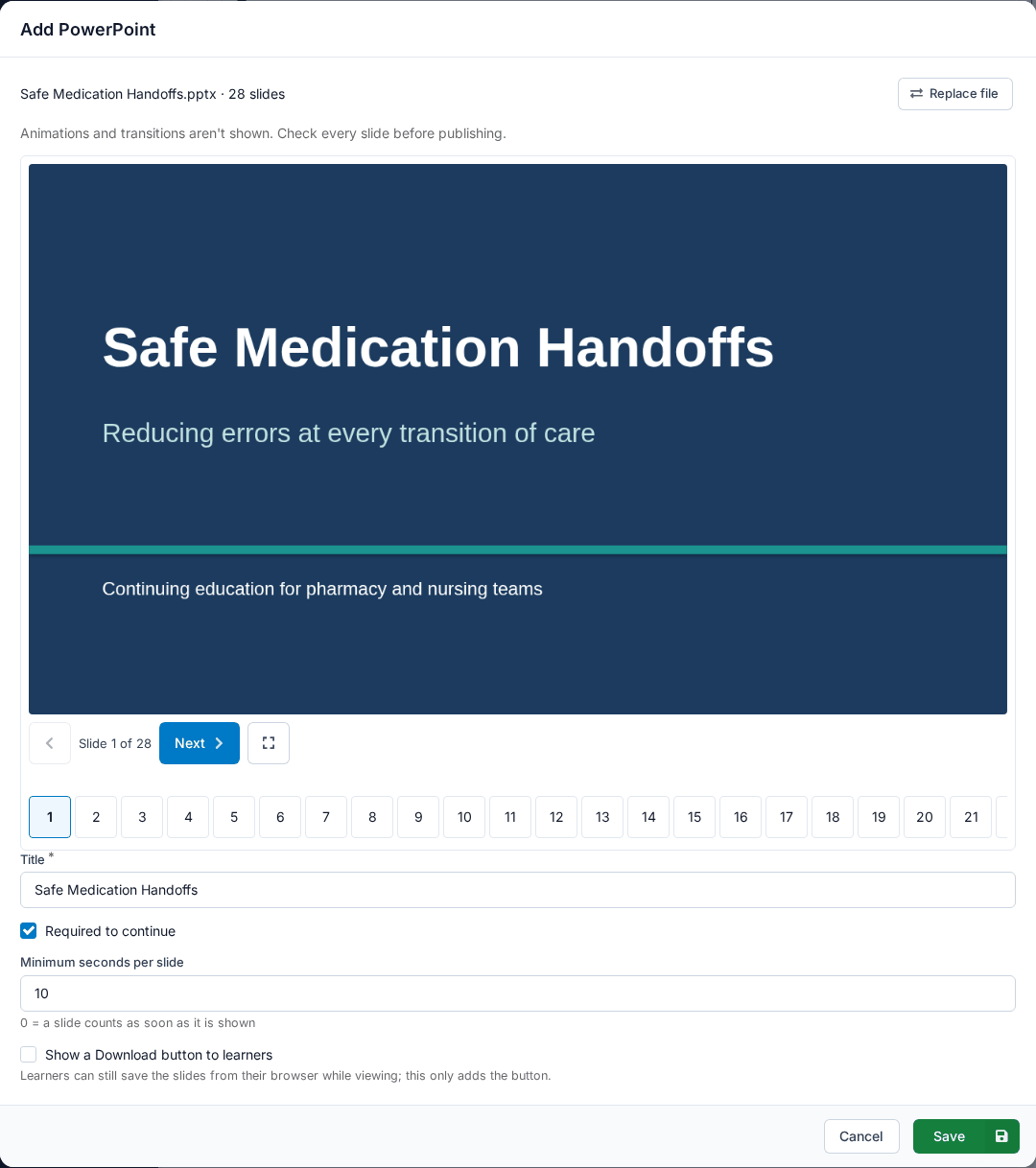
- Wait while the dialog shows "Checking your file…" and then the upload progress. The file opens in a preview, and the line above it gives the file name and slide count, for example Quarterly Update.pptx · 24 slides.
- Go through every slide in the preview (see Check the preview).
- Check the Title and the settings below the preview, then click Save. Save stays unavailable until the upload has finished.
The Title is filled in from the file name, and you can change it. Learners see the title above the slides.
The new PowerPoint is added to the module's materials list with its slide count and settings, for example 24 slides · Required to continue · 10s per slide. Drag it by its handle to put it where it belongs in the module, as you would any other material. Click its row to open the Edit PowerPoint dialog.
TIP
If you close the dialog while the file is still uploading, you are asked "Your upload is still in progress. Leave and discard it?" Click Discard to stop, or cancel and wait for the upload to finish.
What files you can use
- .pptx only. Older PowerPoint files (.ppt) and Keynote files (.key) are not accepted. Open the file in PowerPoint and use Save As to save it as .pptx. From Keynote or Google Slides, use File → Download (or Export) → PowerPoint.
- Up to 150 MB. A larger file is refused with "This file is too large".
- No single video or image over 32 MB. Even under 150 MB, a file with one very large video or image inside can't be shown. You will see "A video or image in this file is larger than 32 MB."
For either size problem, open the file in PowerPoint, choose File → Compress Media, save, and try again.
If a file can't be opened at all, the dialog says "This file couldn't be opened. Re-save it as .pptx in PowerPoint and try again." A file that can't be opened is never uploaded. Click Choose a different file to pick another one.
Check the preview
The preview in the dialog is the same viewer your learners use, showing the same slides. If a slide looks wrong in the preview, it looks wrong to your learners. Go through every slide before you publish, and look for:
- text that has moved, wrapped differently or been cut off
- a font that looks different from your original
- charts, diagrams, pictures or videos that are missing or out of place
If you find a problem, fix the slide in PowerPoint, save, and use Replace file to upload the corrected version.
Animations and transitions aren't played
The viewer shows each slide in its final state. Animations (items that fly in or appear on click) and slide transitions are not played. If a slide hides something until an animation reveals it, learners see everything at once. If your content depends on animation or interaction, build it in an authoring tool and upload it as an xAPI package instead.
Links in your slides to web pages open in a new browser tab. Links that jump to another slide still follow the slide order: a learner can't use one to skip ahead to slides they haven't viewed.
Settings
The settings are below the preview in the Add PowerPoint and Edit PowerPoint dialogs.
| Setting | What it does |
|---|---|
| Title | The name learners see. Required. |
| Required to continue | On by default. A required PowerPoint must be viewed to the last slide before the learner can move past the materials. Turn it off to make the PowerPoint optional. |
| Minimum seconds per slide | How long each slide must stay on screen before it counts as viewed and the learner can go on, from 0 to 300. 0 means a slide counts as soon as it is shown. |
| Show a Download button to learners | Off by default. When it is on, learners get a Download slides button that saves the original .pptx file. |
Required and optional PowerPoints
Required PowerPoints work like required videos and xAPI packages. Required items are completed one at a time, in the order you list them. A required PowerPoint below a required video unlocks when the video is watched, and the next required item below a PowerPoint unlocks when every slide has been viewed. Learners can't go on to Claim Credits until every required item in the module is complete.
An optional PowerPoint never locks anything and never holds the learner up. Its slides are still shown in order, with the same minimum time per slide, and the learner's progress is still saved.
The minimum time per slide
With Minimum seconds per slide above 0, the learner's Next button counts down ("Next in 8s") on every slide they haven't viewed yet. The count only runs while the course page is the tab they are looking at: it pauses if they switch to another tab or window. Going back to a slide they have already viewed has no wait.
Choose a time that fits your shortest slides. Every slide uses the same minimum, so a long minimum on a title slide or a section divider makes learners wait for nothing.
The Download button is not protection
Turning the Download button off does not stop learners from keeping the slides
To show a PowerPoint, the learner's browser receives the whole file. A learner with the right tools can save it whether or not the button is shown. Show a Download button to learners only adds a convenient button. Leaving it off does not protect the file or stop it being copied. Don't upload anything you would not be willing to hand to every learner in the course.
Replacing the file
To upload a corrected or updated version, click the PowerPoint's row on the module's Materials page, then click Replace file in the Edit PowerPoint dialog and choose the new .pptx.
- The new file is checked and uploaded the same way as the first one, and the preview switches to it. The line above the preview reads New file: … (saved when you click Save).
- Nothing changes for learners until you click Save. Close the dialog without saving and the current file stays.
- If the new file can't be used, the dialog says why and adds "Your previous file is still attached." If the upload fails partway, click Try again to send it again, or Keep current file to forget the new file and keep the one you had.
- When you save, the new file replaces the old one, which is deleted.
The preview of a saved PowerPoint also has a Download slides button, so you can always get the stored file back, whatever the learner setting is.
Learners keep their progress by slide number
LecturePanda records progress as slide numbers ("slides 1 to 7 viewed"), not as slide content. After a replacement, a learner who had viewed slides 1 to 7 of the old file has slides 1 to 7 of the new file marked as viewed, even if those slides are now different. A learner who had already completed the PowerPoint stays complete. If you add slides, learners who hadn't finished view the new ones when they reach them. The viewer also offers Go to first unviewed slide if there is an unviewed slide before the one they are on.
If you change the slides a lot and want everyone to view the new version, add it as a new PowerPoint and delete the old one instead of replacing the file.
Deleting a PowerPoint
On the module's Materials page, delete the PowerPoint's row. The confirmation says "The uploaded PowerPoint file is removed too, and learners lose access to it." The file is deleted, and the PowerPoint no longer appears for learners or holds anyone up.
Copying a course or module
When you copy a module, or copy a course with Copy Modules ticked, its PowerPoints are copied with it, file and settings included. The classic copy page without Copy Modules can't copy PowerPoints and leaves them out of the copy. It warns you about this before you copy.
What learners see
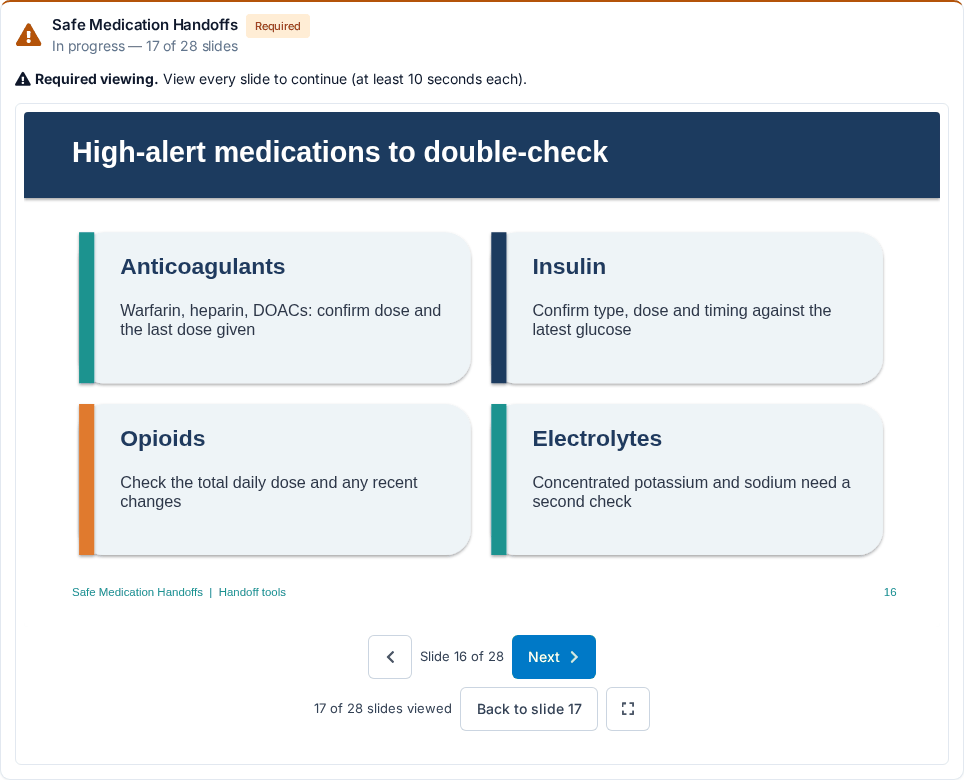
Each PowerPoint is its own row in the module's materials, in the order you set, with the title and a status underneath:
- Not started
- In progress — 5 of 12 slides
- Complete!
- Complete [the item before it] to unlock, when a required item above it isn't finished yet. The slides don't load until it unlocks.
A required PowerPoint has an orange Required label and, until it is complete, the line "Required viewing. View every slide to continue." (with "at least 10 seconds each" added when you set a minimum time).
Under the slide, centered, are the viewer's controls:
- A back arrow and Next, with the slide counter (Slide 3 of 12) between them, and how many slides the learner has viewed (8 of 12 slides viewed).
- Back to slide N, when the learner has gone back to an earlier slide. It returns them to the furthest slide they have viewed. Slides they haven't reached yet still open only in order.
- A full screen button. On iPhone the viewer fills the browser window instead. Press Esc to leave full screen.
- Download slides, only when you turned on Show a Download button to learners.
Learners can also use the arrow keys, Page Up and Page Down, and the space bar to move between slides, or swipe on a phone or tablet.
If a learner tries to move on before the minimum time is up, they see "Stay on this slide a few more seconds". On the last slide, once every slide has been viewed, the viewer shows All slides viewed. The row then reads Complete!, and a link next to it takes the learner to the next item.
Progress is saved as the learner goes. When they come back, on the same device or another one, the PowerPoint opens on the slide where they stopped, with the slides they viewed still unlocked. A PowerPoint the learner has already completed opens on the first slide.
While a required PowerPoint is unfinished, the button to the next step is unavailable and the bar at the bottom of the page says "View the required presentations to continue."
For the learner's own help page, see Working Through a Course.
Marking a PowerPoint complete or incomplete for a learner
If a learner needs to be let through, or needs to view a PowerPoint again, you can change their completion yourself:
- Open the course's Registrants list (Tools & Reports › Registrant List) and find the learner's row.
- Click the completion button in the middle button group. On a course with a required PowerPoint it shows a check box icon instead of the filmstrip, and its tooltip reads "Update this participant's video and PowerPoint completion."
- The Update Completion dialog lists the course's videos and, under PowerPoints, each required PowerPoint. A PowerPoint the learner has started shows how far they got, for example 2. Safety Briefing (5 of 12 slides viewed).
- Switch each PowerPoint to Complete or Incomplete, then click Update completion.
Only the PowerPoints you change are updated. The others, including any the learner is partway through, are left as they are. Optional PowerPoints are not listed, because they never hold a learner up.
Marking a PowerPoint incomplete resets that learner's slide progress for it. They start again from the first slide and have to view every slide again.
Ask the learner to reload the page
If the learner has the course page open on that PowerPoint when you mark it incomplete, their open page doesn't know about the reset. It can save the slides they had already viewed again, which puts their progress back. Ask the learner to close the course page before you mark the PowerPoint incomplete. If they had it open, ask them to reload it afterwards. If their progress has come back, mark the PowerPoint incomplete again.
Troubleshooting
"This presentation couldn't be opened"
In the builder, the full message is "This presentation couldn't be opened. Re-save it as .pptx in PowerPoint and replace the file." Open the original in PowerPoint, use Save As to save it as .pptx, and use Replace file. Learners see "Contact the course provider" instead, so if a learner reports this message, check the PowerPoint in the Edit PowerPoint dialog.
A learner sees "Your browser can't display these slides"
The viewer needs a recent browser. Ask the learner to update their browser, or try a recent version of Chrome, Edge, Firefox or Safari.
A learner sees "Your progress couldn't be saved"
"Check your connection" means the learner's page can't reach LecturePanda. It keeps trying, and the message clears once a save goes through. If the message says to reload the page, the learner should reload. If it keeps happening, contact support.
A learner can't get past a slide
With a minimum time per slide, Next stays unavailable until the countdown finishes, and the countdown pauses whenever the course page isn't the tab the learner is looking at. Ask them to keep the page in view until Next is available.
Related
- Course Modules — where materials live and how required items unlock in order
- Materials — the other kinds of material
- xAPI Modules — for content that needs animation or interaction
- Tracked PDFs — for a PDF learners read on the page, tracked by time open
- Managing Registrations — the buttons on a registrant's row