
Appearance
Tracked PDFs
Upload a PDF to a module and learners open it full screen from the course page. LecturePanda counts how long they have it open, and a required Tracked PDF can ask for a minimum reading time before they move on.
This page is for the course builder
Tracked PDFs are added on a module's Materials page in the course builder. The classic Materials tab does not offer them. See Course Modules for how modules and their materials work.
A Tracked PDF is a learning material, like a video or a PowerPoint. Learners don't download anything: they click Open PDF on the course page and the PDF opens full screen, as one continuous scroll of pages. LecturePanda counts the time the PDF is open in front of the learner, saves it as they go, and marks the PDF complete once they reach the minimum time you set.
Tracked PDF or Upload File?
There are two ways to put a PDF in a module, and they do different jobs:
| Upload File | Tracked PDF | |
|---|---|---|
| What learners get | A file in the "Files For Download" box, to download and open on their own device | The PDF opened full screen from the course page, in a viewer |
| Tracking | None | The time the PDF is open, saved as they read |
| Can hold learners up | No | Yes, when it is Required to continue |
| Good for | Handouts, worksheets, slides to keep, anything learners print or fill in | Reading you want learners to actually spend time on: a policy, a chapter, a case study |
Upload File works exactly as it always has. Use it when you just want learners to have a copy. Use a Tracked PDF when the reading is part of the course and you want it to count.
Adding a Tracked PDF
- Open the module under Course Content and click Materials.
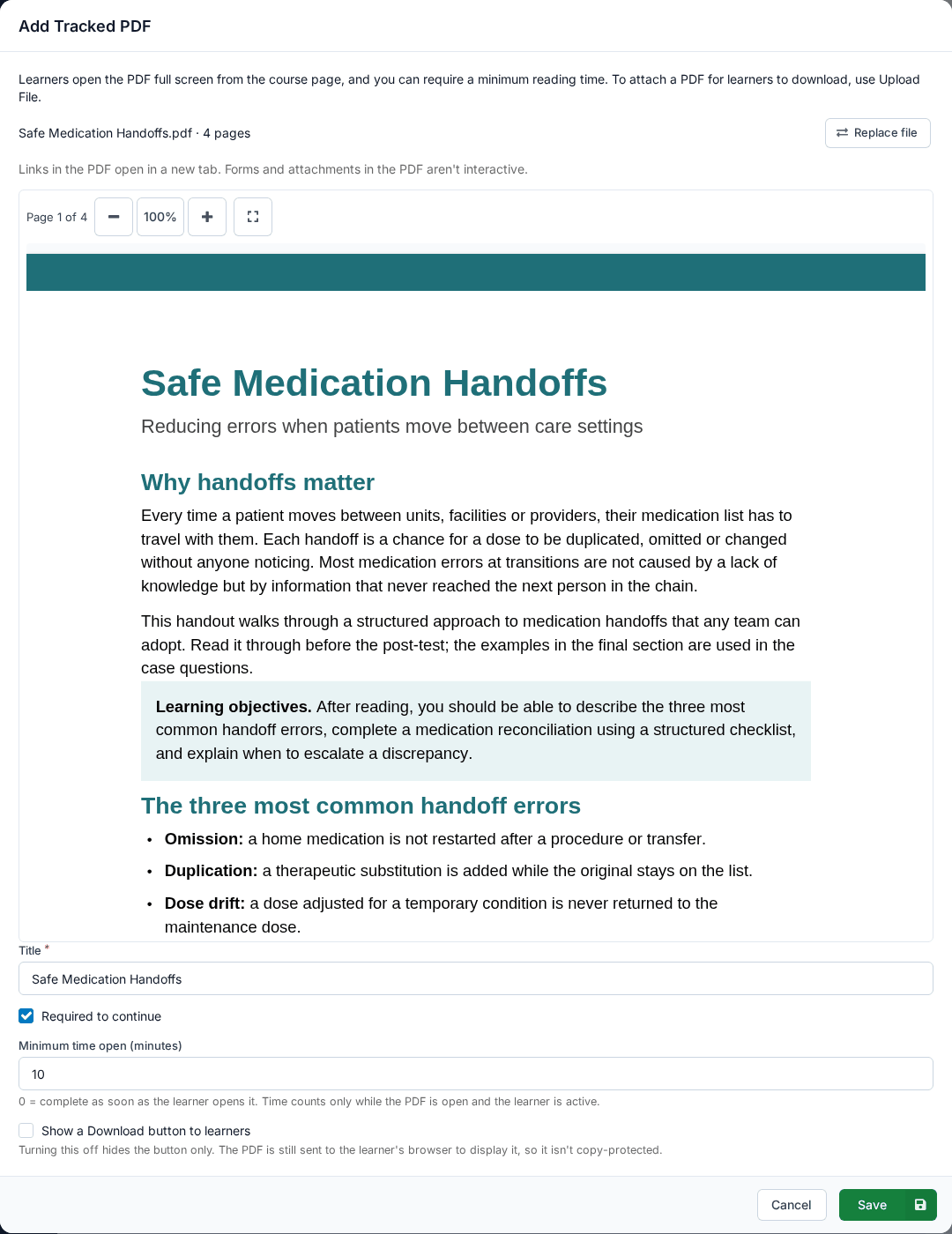
- Click Add Material and choose Add Tracked PDF. The Add Tracked PDF dialog opens with the line "Learners open the PDF full screen from the course page, and you can require a minimum reading time. To attach a PDF for learners to download, use Upload File."
- Drag your file onto the box that reads "Drag and drop a PDF here", or click the box to browse for it.
- The PDF opens in a preview, and the line above it gives the file name and page count, for example Staff Handbook.pdf · 42 pages. The upload runs while you look.
- Scroll through the preview to check it.
- Check the Title and the settings below the preview, then click Save. Save stays unavailable until the upload has finished.
The Title is filled in from the file name, and you can change it. Learners see the title above the PDF.
The new Tracked PDF is added to the module's materials list with its page count and settings, for example 42 pages · Required to continue · 10 min open. Drag it by its handle to put it where it belongs in the module, as you would any other material. Click its row to open the Edit Tracked PDF dialog.
TIP
If you close the dialog while the file is still uploading, you are asked "Your upload is still in progress. Leave and discard it?" Click Discard to stop, or cancel and wait for the upload to finish.
What files you can use
- .pdf only. Any other file is refused with "This isn't a PDF file". To give learners a Word document or a spreadsheet, use Upload File.
- Up to 100 MB. A larger file is refused with "This file is too large". In Acrobat, File > Save as Other > Reduced Size PDF makes a smaller copy.
- Up to 2000 pages. Split a longer PDF into several files.
- No password. A password-protected PDF is refused. Remove the password (in Acrobat: File > Properties > Security) and upload it again.
A file that can't be opened is never uploaded. If the dialog says "This file isn't a valid PDF" or "This file couldn't be opened", export the document to PDF again from the program that made it, and try again.
Check the preview
The preview is the same viewer your learners use. Links in the PDF to web pages open in a new browser tab, and links to another page of the PDF (a table of contents, say) scroll to that page. Form fields and attachments inside the PDF are shown but can't be filled in or opened.
A scanned PDF works, but it is a picture of each page: learners can zoom in, but can't select its text, and screen readers can't read it.
Settings
The settings are below the preview in the Add Tracked PDF and Edit Tracked PDF dialogs.
| Setting | What it does |
|---|---|
| Title | The name learners see. Required. |
| Required to continue | On by default. A required Tracked PDF must be open for the minimum time before the learner can move past the materials. Turn it off to make it optional. |
| Minimum time open (minutes) | How long the PDF must be open in front of the learner before it is complete, in whole minutes from 0 to 480 (8 hours). 0 means it is complete as soon as the learner opens it. |
| Show a Download button to learners | Off by default. When it is on, learners get a Download PDF button. |
Required and optional Tracked PDFs
Required Tracked PDFs work like required videos and PowerPoints. Required items are completed one at a time, in the order you list them: a required Tracked PDF below a required video unlocks when the video is watched, and the next required item below the PDF unlocks when the minimum time is reached. Learners can't go on to Claim Credits until every required item in the module is complete.
An optional Tracked PDF never locks anything and never holds the learner up. Its time is still counted and saved.
Choosing the minimum time
Pick a time a careful reader needs, not the most anyone could spend. Time only counts while the learner is actually reading (see How time is counted), so a learner who reads steadily reaches the minimum in about that time. The time is a total: it doesn't have to be in one sitting.
The Download button is not protection
Turning the Download button off does not stop learners from keeping the PDF
To show a PDF, the learner's browser receives the whole file. A learner with the right tools can save it whether or not the button is shown. Show a Download button to learners only adds a convenient button. Leaving it off hides the button. It does not copy-protect the file. Don't upload anything you would not be willing to hand to every learner in the course.
How time is counted
Nothing counts until the learner clicks Open PDF. The PDF then opens full screen, covering the course page, and time counts, second by second, only while all of these are true:
- The PDF is open. Closing it (with Close, Esc, or the browser's own exit from full screen) stops the count. Only one PDF can be open at a time.
- The first page has shown. Time spent waiting for the PDF to load doesn't count.
- The course page is the tab the learner is looking at. Switching to another tab or window, or minimizing the browser, pauses it.
- The learner has been active in the last 5 minutes. Scrolling the PDF, moving the mouse, clicking, tapping or pressing a key all count as activity. After 5 minutes with none, counting pauses. The 5 minutes before the pause still count, and the next scroll, click or key press starts it again.
A Tracked PDF with a minimum of 0 is complete once the learner has opened it and its first page has shown for a second. Scrolling past the row doesn't complete it.
The time is saved as the learner reads, when they close the PDF, and when they leave the page. When they come back, on the same device or another one, the total carries on from where it was, and the PDF opens at the page where they stopped.
Time before the first save
Time is credited when it reaches LecturePanda. If a learner opens a Tracked PDF while their device is offline, the time before their page first saves isn't credited. Once they are back online it counts normally.
What learners see
Each Tracked PDF is its own row in the module's materials, in the order you set, with the title and a status underneath:
- Not started
- In progress — 3 of 10 minutes, with the minutes rounded down ("less than 1" in the first minute)
- In progress — saving…, for the moment between the learner reaching the minimum and LecturePanda confirming it
- Complete!
- Complete [the item before it] to unlock, when a required item above it isn't finished yet. The PDF doesn't load until it unlocks.
A required Tracked PDF has an orange Required label and, until it is complete, the line "Required reading. Keep this PDF open for at least 10 minutes to continue. Time counts while it's open and you're active. Your time is saved, so you can come back later." With a minimum of 0, the line reads "Required reading. Open this PDF to continue."
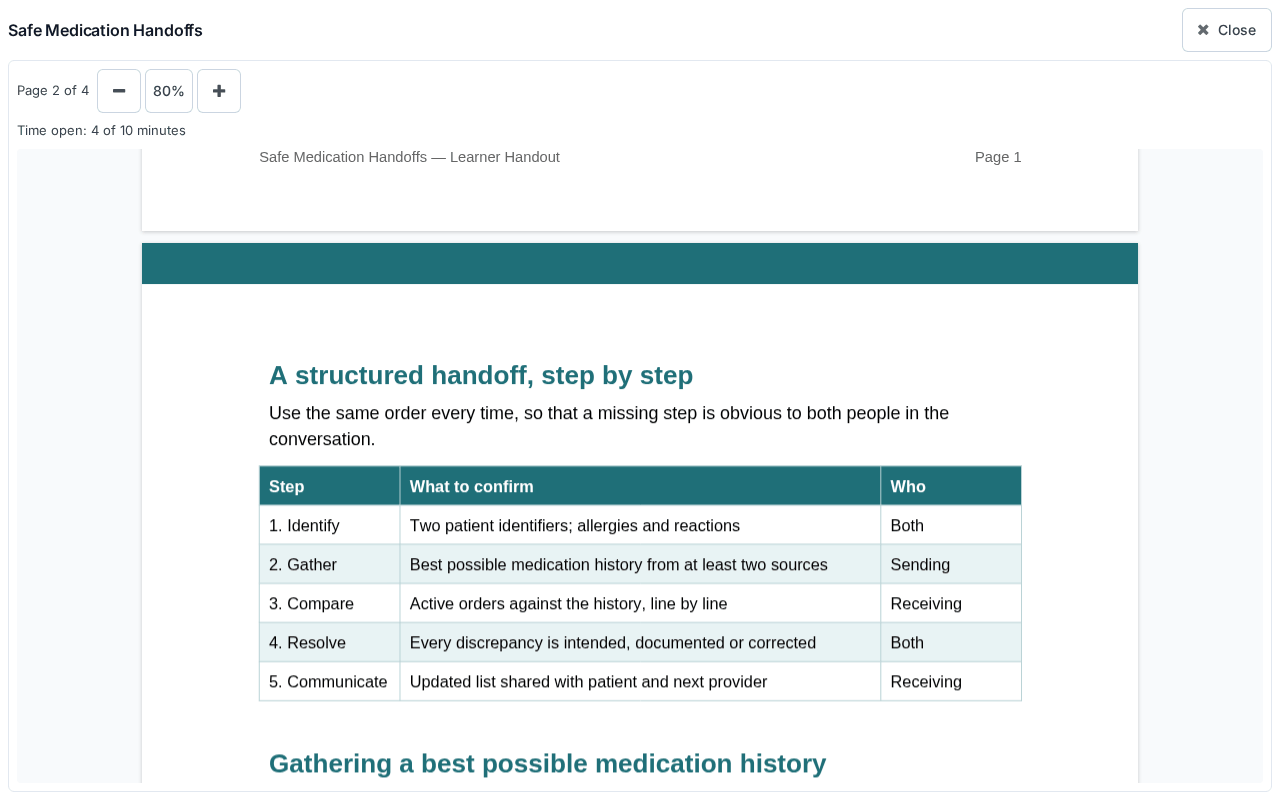
Under the status is the button that opens the PDF: Open PDF, or Continue reading once the learner has started (Open PDF again once it is complete). The PDF doesn't show on the course page itself. The button opens it full screen, over the whole page, with the PDF's title and a Close button at the top. On a browser that can't go full screen (iPhone Safari), the PDF fills the browser window instead. The learner closes it with Close or Esc. Leaving the browser's full screen closes it too.

Above the PDF are the viewer's controls:
- The page the learner is on, for example Page 3 of 42.
- Zoom out, the zoom level, and zoom in. Click the zoom level (for example 125%) to go back to fitting the page width. On a phone or tablet, learners can also pinch to zoom the PDF.
- Download PDF, only when you turned on Show a Download button to learners.
Under the controls, the time line shows Time open: 3 of 10 minutes. When counting is paused it says why (see Tracked PDF time isn't counting). When the minimum is reached it shows Minimum time reached, or Opened for a minimum of 0. The row then reads Complete!, and a link next to it takes the learner to the next item. When a learner comes back to a PDF they had started, the time line also shows Resumed at page 3 of 42 for a few seconds.
While a required Tracked PDF is unfinished, the button to the next step is unavailable and the bar at the bottom of the page says "Spend the required time on the PDFs to continue." (If a required PowerPoint is unfinished too, it says "Finish the required PowerPoints and PDFs to continue.")
For the learner's own help page, see Working Through a Course.
Replacing the file
To upload a corrected or updated version, click the Tracked PDF's row on the module's Materials page, then click Replace file in the Edit Tracked PDF dialog and choose the new PDF.
- The new file is checked and uploaded the same way as the first one, and the preview switches to it. The line above the preview reads New file: … (saved when you click Save).
- Nothing changes for learners until you click Save. Close the dialog without saving and the current file stays.
- When you save, the new file replaces the old one, which is deleted.
- Learners keep the time they've already spent. A learner who had already completed the PDF stays complete.
If you change the document a lot and want everyone to read the new version, add it as a new Tracked PDF and delete the old one instead of replacing the file.
Deleting a Tracked PDF
On the module's Materials page, delete the Tracked PDF's row. The confirmation says "The uploaded PDF file is removed too, and learners lose access to it." The file is deleted, and the Tracked PDF no longer appears for learners or holds anyone up.
Copying a course or module
When you copy a module, or copy a course with Copy Modules ticked, its Tracked PDFs are copied with it, file and settings included. The classic copy page without Copy Modules can't copy Tracked PDFs and leaves them out of the copy. It warns you about this before you copy.
Marking a Tracked PDF complete or incomplete for a learner
If a learner needs to be let through, or needs to read a Tracked PDF again, you can change their completion yourself:
- Open the course's Registrants list (Tools & Reports › Registrant List) and find the learner's row.
- Click the completion button in the middle button group. On a course with a required Tracked PDF it shows a check box icon instead of the filmstrip, and its tooltip names what it updates, for example "Update this participant's video and Tracked PDF completion."
- The Update Completion dialog lists the course's videos and, under Tracked PDFs, each required Tracked PDF. One the learner has started shows how far they got, for example 1. Staff Handbook (3 of 10 minutes).
- Switch each Tracked PDF to Complete or Incomplete, then click Update completion.
Only the Tracked PDFs you change are updated. Optional Tracked PDFs are not listed, because they never hold a learner up.
Marking a Tracked PDF incomplete resets that learner's time for it. Their time starts again from zero, and the PDF opens at the first page.
Ask the learner to reload the page
If the learner has the course page open on that PDF when you mark it incomplete, their open page doesn't know about the reset. It can save the time it had already counted again, which puts their time back. Ask the learner to close the course page before you mark the PDF incomplete. If they had it open, ask them to reload it afterwards. If their time has come back, mark the PDF incomplete again.
Troubleshooting
Tracked PDF time isn't counting
Time only counts while the PDF is open, so first check that the learner clicked Open PDF and is reading in the full-screen view. While it is open and counting stops, the time line under the viewer's controls says why:
| Message | Why | What starts it again |
|---|---|---|
| Paused while this tab is hidden | The course page isn't the tab the learner is looking at: they switched tabs or windows, or minimized the browser. | Coming back to the course page. |
| Paused — scroll, click or press a key to keep counting | No activity for 5 minutes. | Any scroll, click, tap or key press. |
The minutes on the row and the time line always agree. The time is a total of the counted seconds, so it can reach the minimum later than the clock on the wall suggests.
Screen readers and keyboard reading. Learners who read with a screen reader or the keyboard keep the time counting: moving focus inside the viewer and selecting text in the PDF both count as activity, as do the keys they press. When counting pauses, the screen reader announces the pause message once, and "Counting your time again" once when it starts again. It also announces "Minimum time reached". The ticking time itself is never announced. Note that a scanned PDF has no text a screen reader can read.
A learner sees "Your browser can't display this PDF here"
The viewer needs a recent browser. On a very old browser (roughly Safari older than 16.4, on iPhones and Macs that haven't been updated in a long time) the PDF can't be shown on the page. The learner sees an error in place of the PDF, such as "Your browser can't display this PDF here. Try a recent version of Chrome, Edge, Firefox or Safari." or "This PDF couldn't be opened here."
Under the error is Open the PDF in a new tab, which opens the PDF in the browser's own viewer whatever the download setting is. Time spent there isn't tracked, so it can't complete the PDF. On a required Tracked PDF, the note under the link says: "If the PDF won't show here, contact the course provider to have it marked complete." If the browser blocks the new tab, the learner sees "Your browser blocked the new tab. Allow pop-ups for this site and try again."
When a learner can't update their browser or use another device, let them read the PDF in the new tab, then mark the Tracked PDF complete for them.
A learner's time went back up after I marked the PDF incomplete
Their course page was still open on the PDF when you reset it, and it saved its time again. Ask them to reload the page, then mark the Tracked PDF incomplete again. See Marking a Tracked PDF complete or incomplete.
A learner sees "Your progress couldn't be saved"
"Check your connection" means the learner's page can't reach LecturePanda. It keeps trying, and the message clears once a save goes through. If the message says to reload the page, the learner should reload. If it keeps happening, contact support.
"This PDF couldn't be opened" in the builder
In the dialog, the message says what went wrong: the PDF is password-protected, has more than 2000 pages, or couldn't be read. Remove the password, split the file, or export it to PDF again, and use Replace file. Learners see "This PDF couldn't be opened here." instead, so if a learner reports that message, check the PDF in the Edit Tracked PDF dialog.
A PDF that takes too long to show says "The PDF viewer didn't load. Reload the page and try again." with a Try again button, in the dialog and on the course page alike. It is usually a slow device or connection rather than the file.
Related
- PowerPoint Presentations — the slide-by-slide version for .pptx files
- Course Modules — where materials live and how required items unlock in order
- Materials — Upload File and the other kinds of material
- Managing Registrations — the buttons on a registrant's row